- Access the https://enablegst.bdo.in BDO EnableGST Home page will be displayed.
- Login to the EnableGST Portal with valid credentials i.e. user Id and password
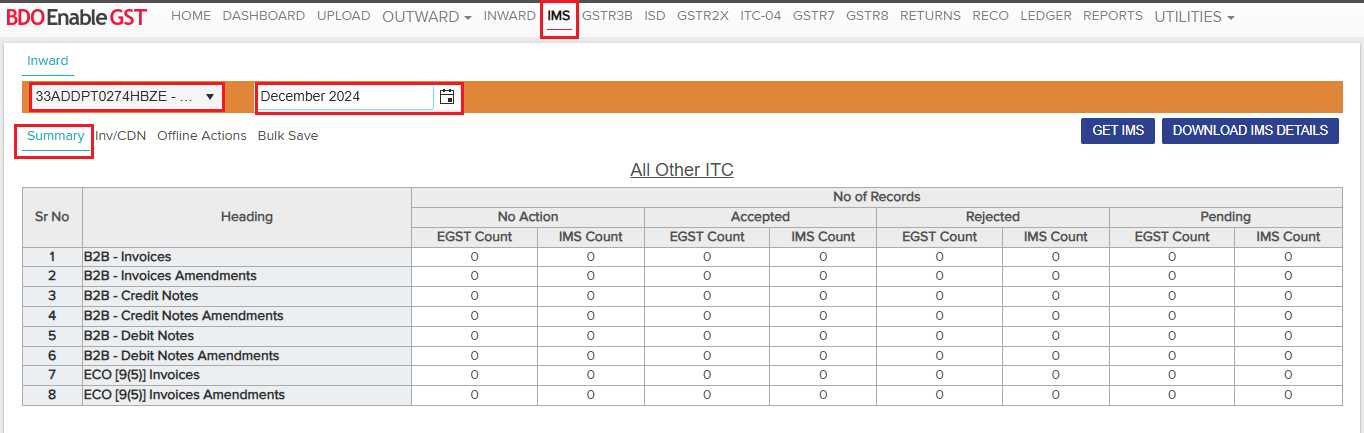
- Click on IMS (Invoice Management System) Tab >> Inward >> Select Trade Name & Month >> summary page of Inward Supplies will be displayed on the screen.
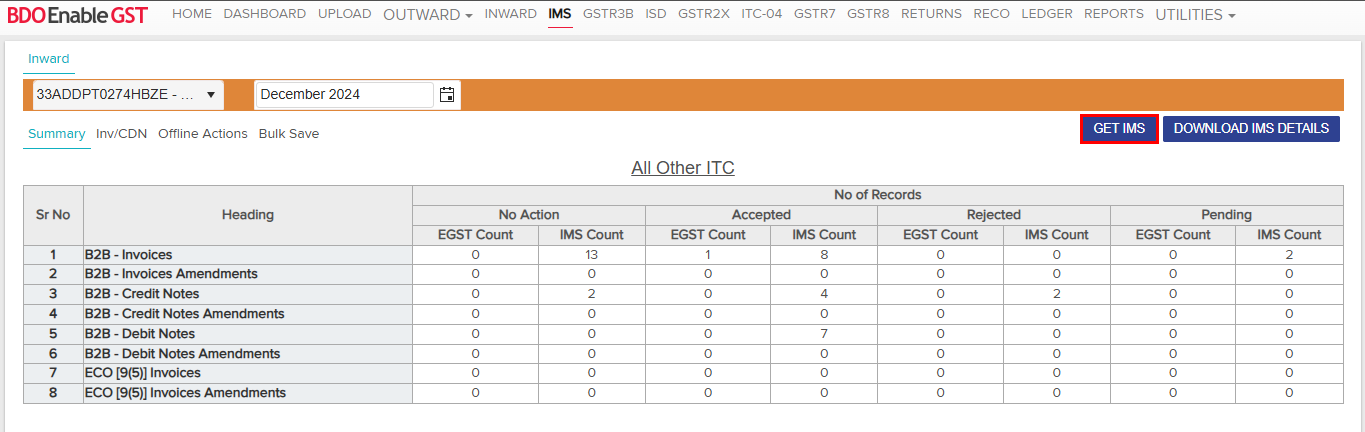
- Click on the GET IMS tab to fetch data from the GSTN portal. The invoice count will appear in the All Other ITC summary table under the ‘No Action’ Any actions taken on invoices will be categorized under their respective status.
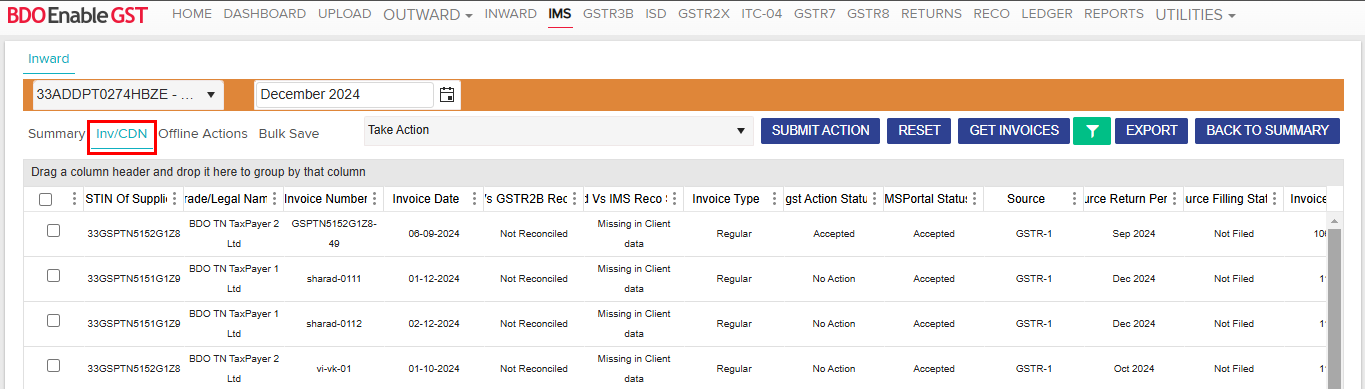
- Click on INV/CDN, and the retrieved data will be displayed in transaction-wise.
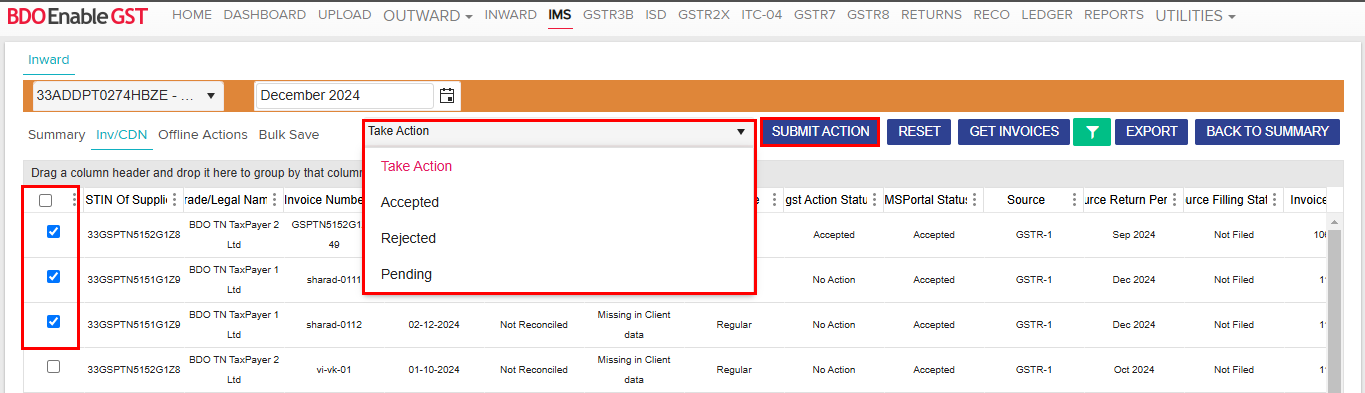
- To take action on a particular transaction, click on the check box appears against the invoice & choose an option from the “Take Action” dropdown.
On the basis of action taken by the taxpayer, invoices/records can be categorized as mentioned below:- No action taken: These are the invoices/records where no action has been taken by the recipient these will be treated as deemed accepted at the time of GSTR-2B generation.
- Accepted: These are the accepted records and will be part of GSTR-2B generation.
- Rejected: These records will not be considered for GSTR-2B generation.
- Pending: These records will not be considered for GSTR-2B generation for the month, same will be carried forward in IMS itself for further action in subsequent months.
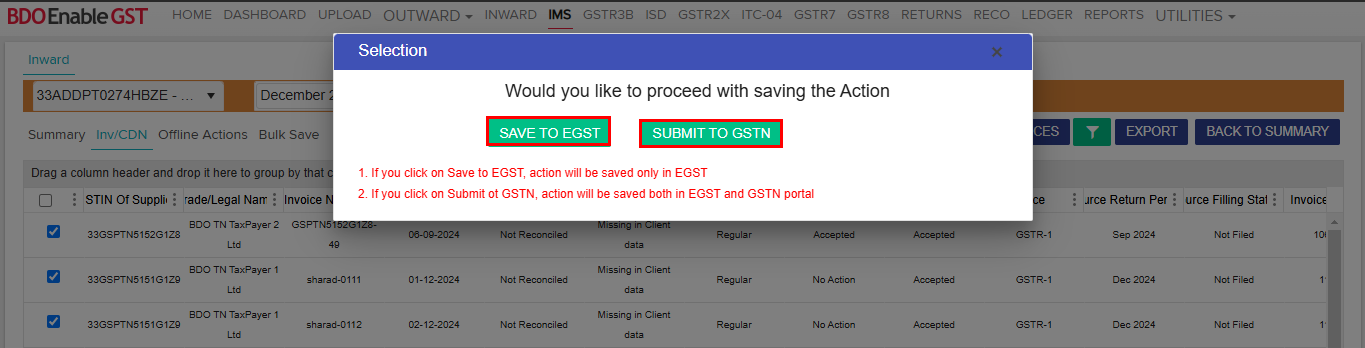
- When user click on the ‘Submit Action’ button, there are 2 functionalities:
- Save to EGST: Clicking ‘Save to EGST’ will save the actions only in the BDO EnableGST Portal, not on the GST portal.
- Submit to GSTIN: Clicking ‘Submit to GSTIN’ will reflect the actions on both the EGST and GST portals, and your GSTR-2B will be updated accordingly.
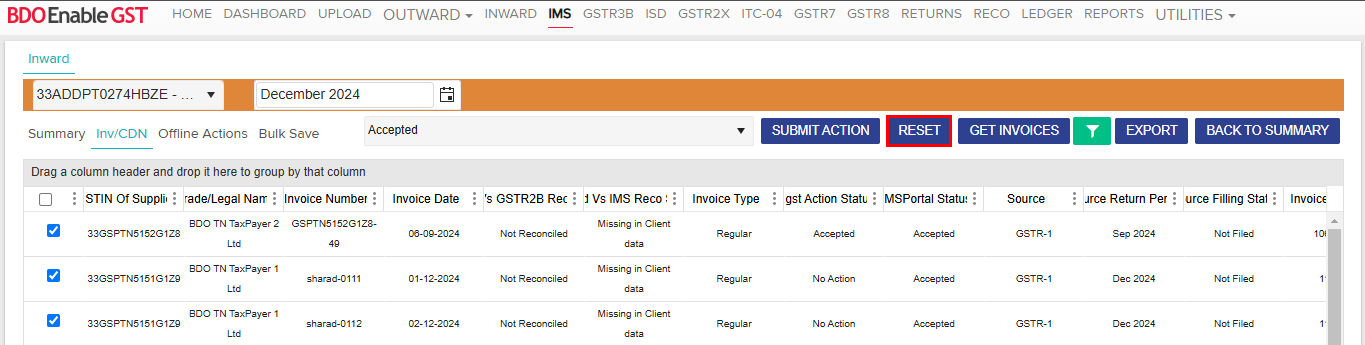
- Click the RESET button to reset the action taken on records.
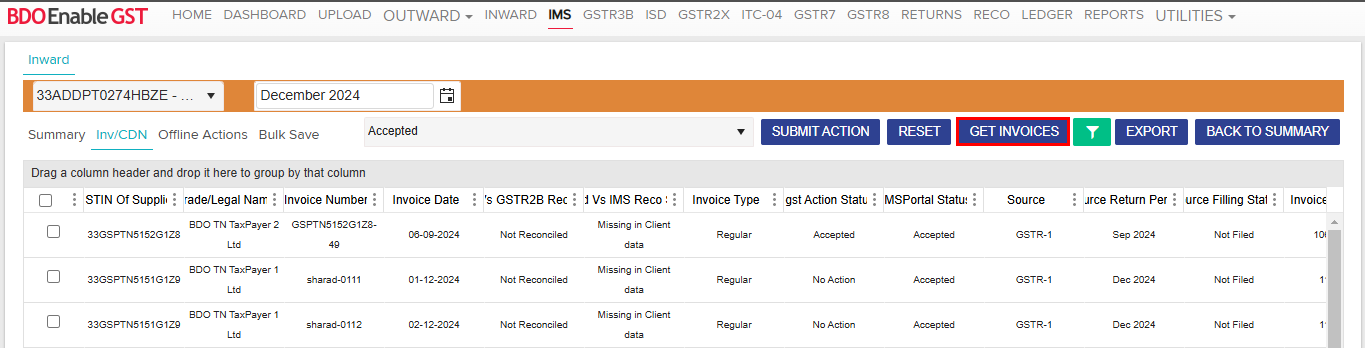
- The user can also fetch IMS data from the INV/CDN tab by clicking the GET INVOICES button.
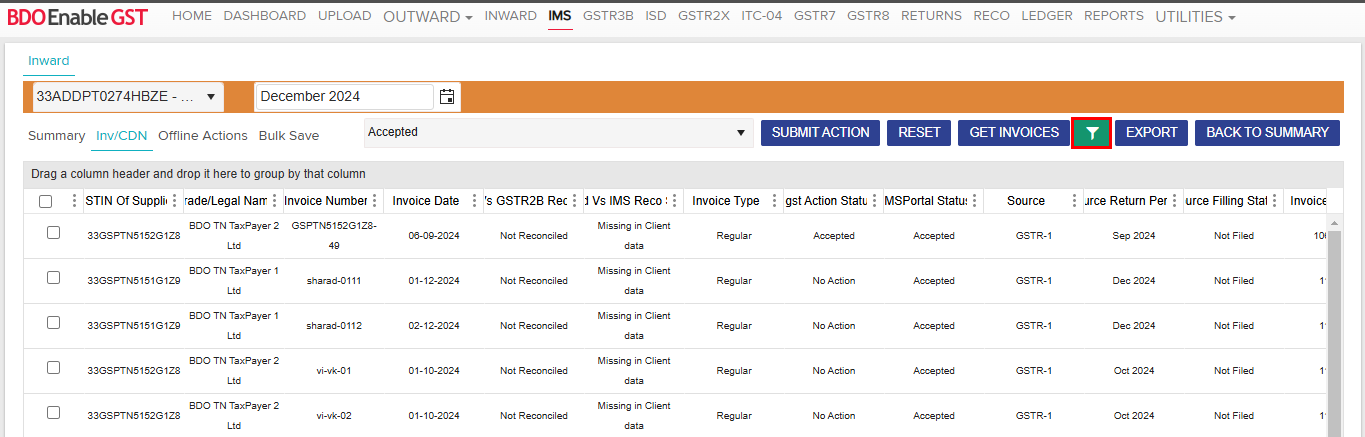
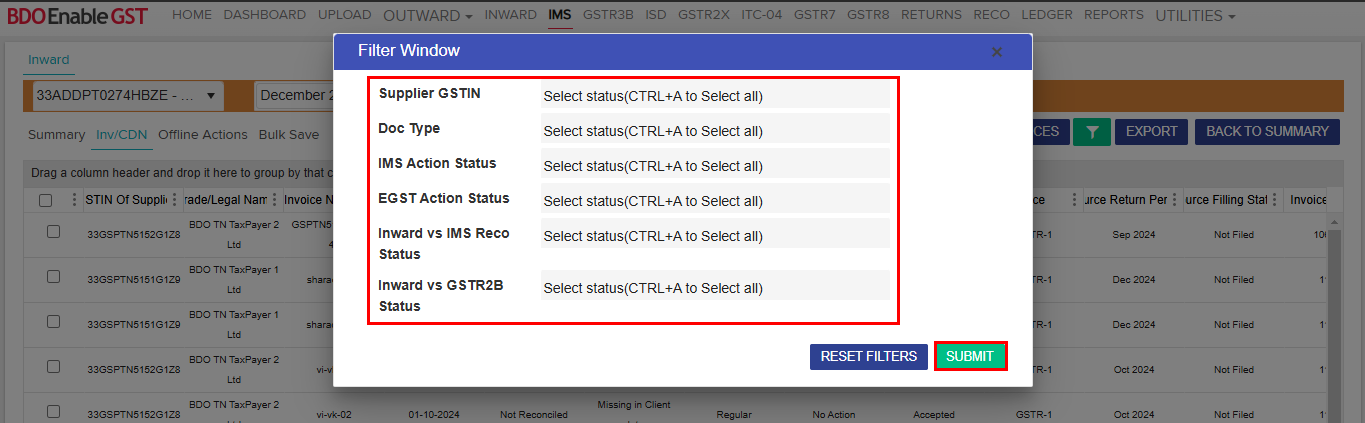
- User can filter out the data as per the user convenience by clicking on the Filter option and then clicking Submit.
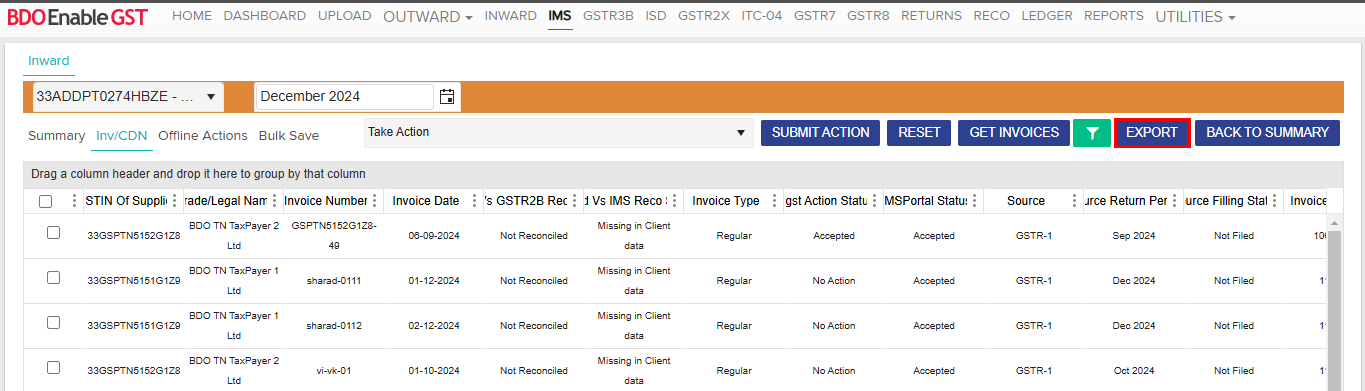
- The user can export data to Excel by clicking “Export.”
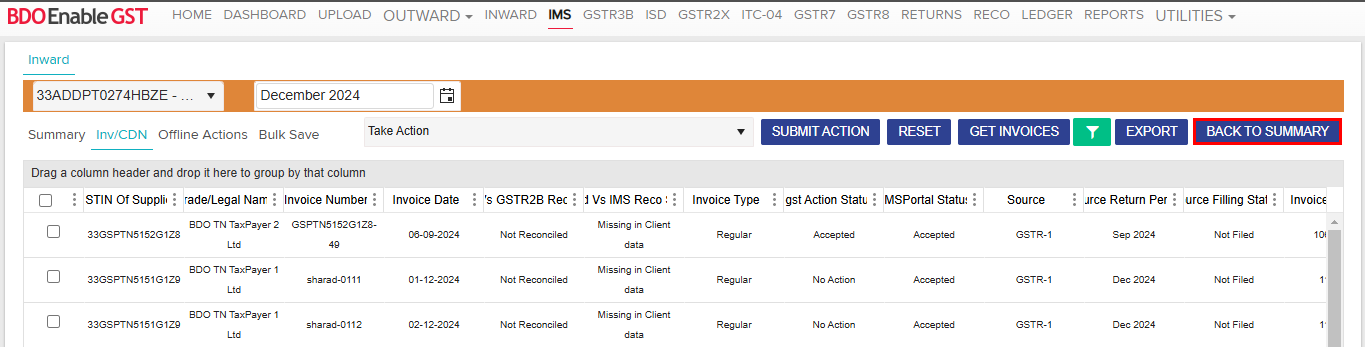
- After clicking “BACK TO SUMMARY,” the user can return to the Summary tab to check the summary.
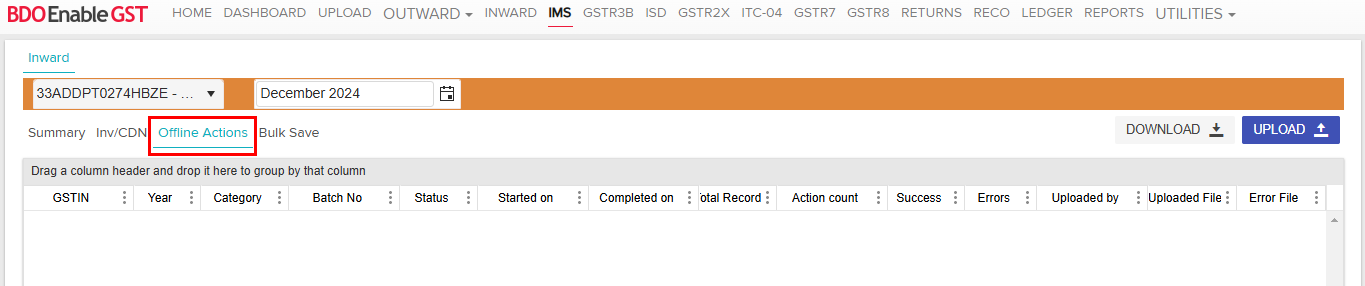
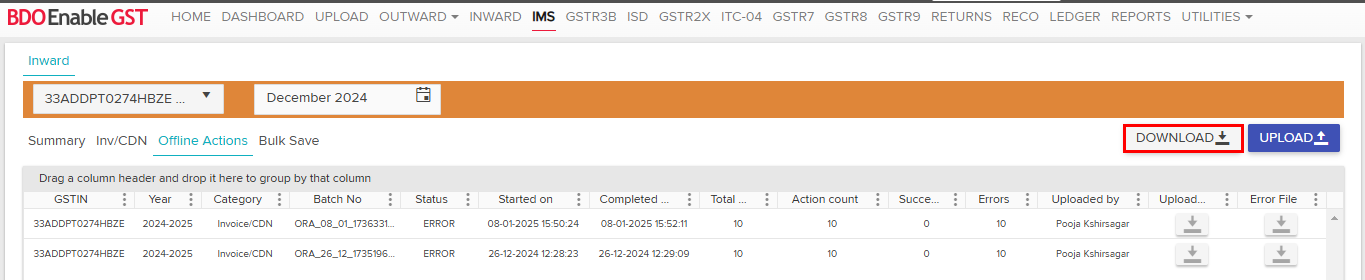
- The user can take bulk actions from Offline Action.
- Click on Download >> Select Invoice category >> click on “Excel” option.
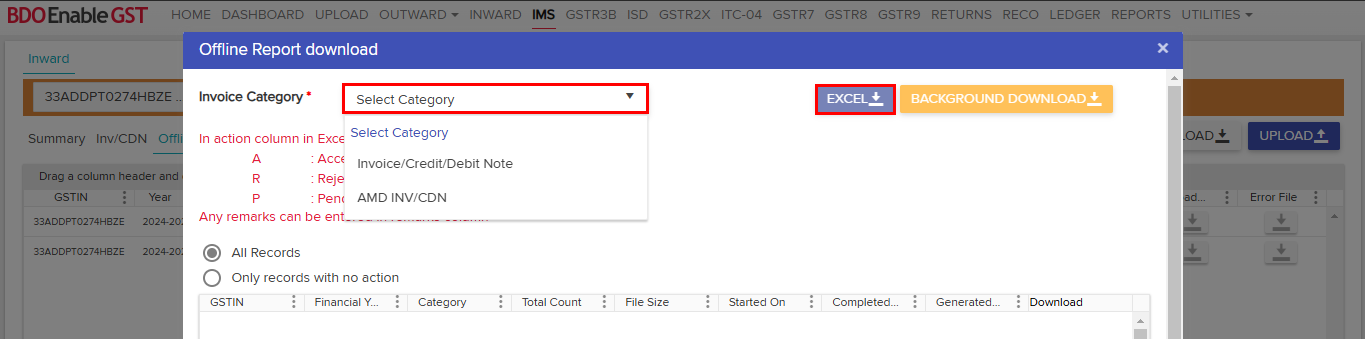
- The user can choose to include all records or only records with no action in the report.
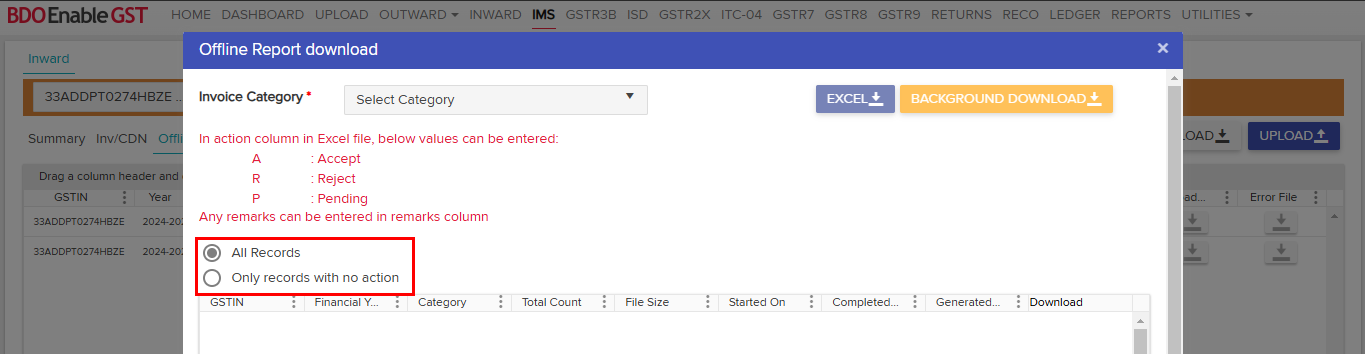
Note: It is always advisable to select Background Download when the data is large.
Action taken column in offline file enter below value
A: – Accept
R: – Reject
P: – Pending - Once the Excel file is downloaded, the user can update the “Action” column and add any additional remarks in the “Remarks”
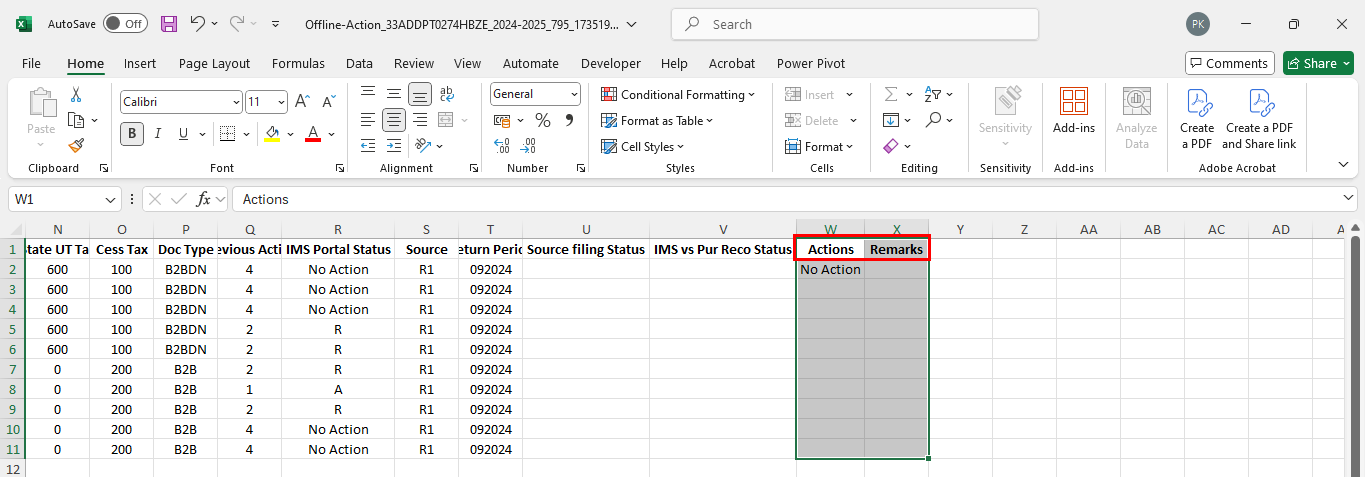
- Once the action is completed, the user can upload the same file to the system by clicking “Upload.”
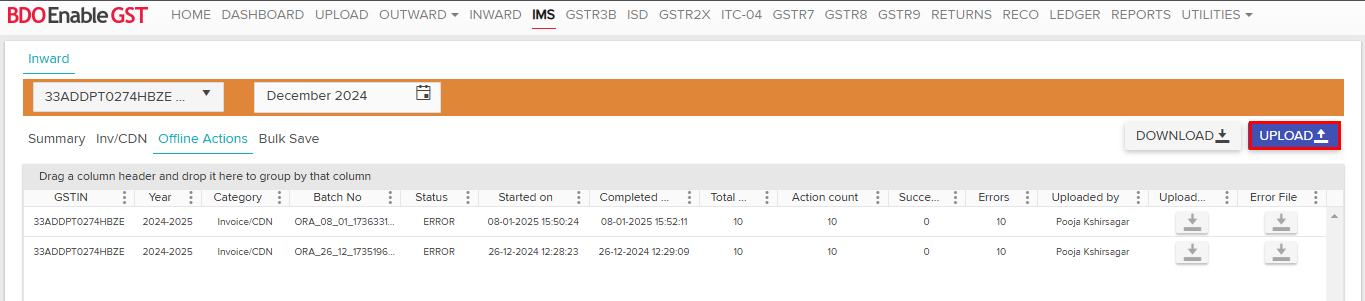
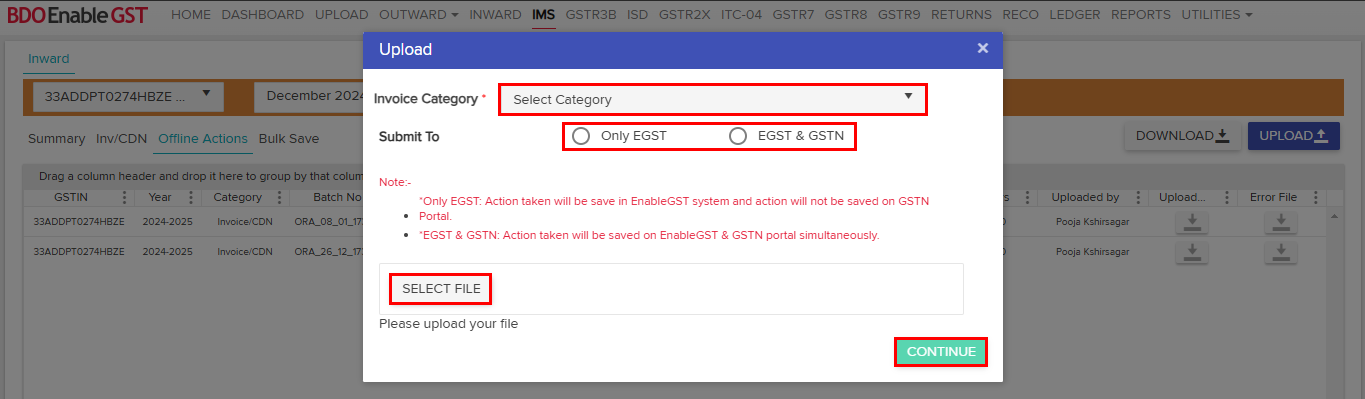
- While uploading the offline action file, the user must select the invoice category, choose the file, select the submission option (Only EGST or EGST & GSTN), and click “Continue.”
Note:
Only EGST: Action taken will be saved on BDO EnableGST system and action will not be saved on GSTN Portal.
EGST & GSTN: Action taken will be saved on BDO EnableGST & GSTN portal simultaneously.
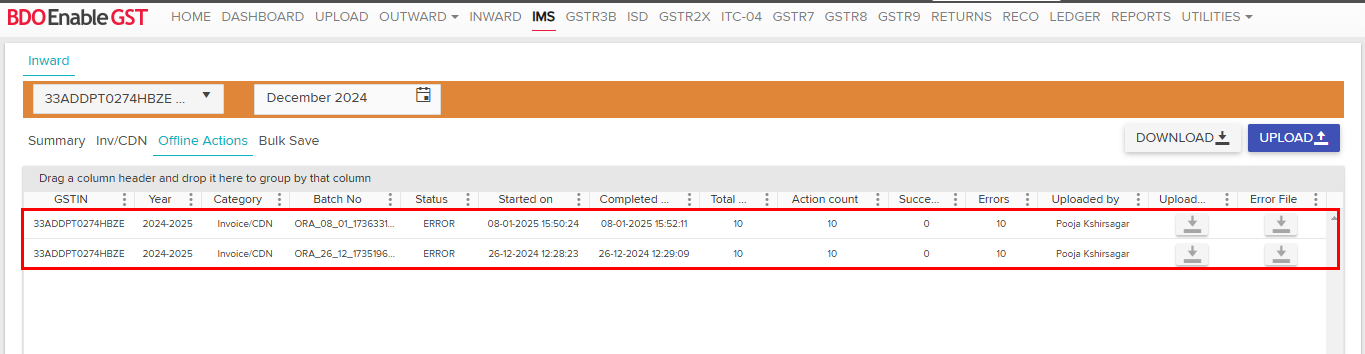
- The uploaded data appears in the grid below.
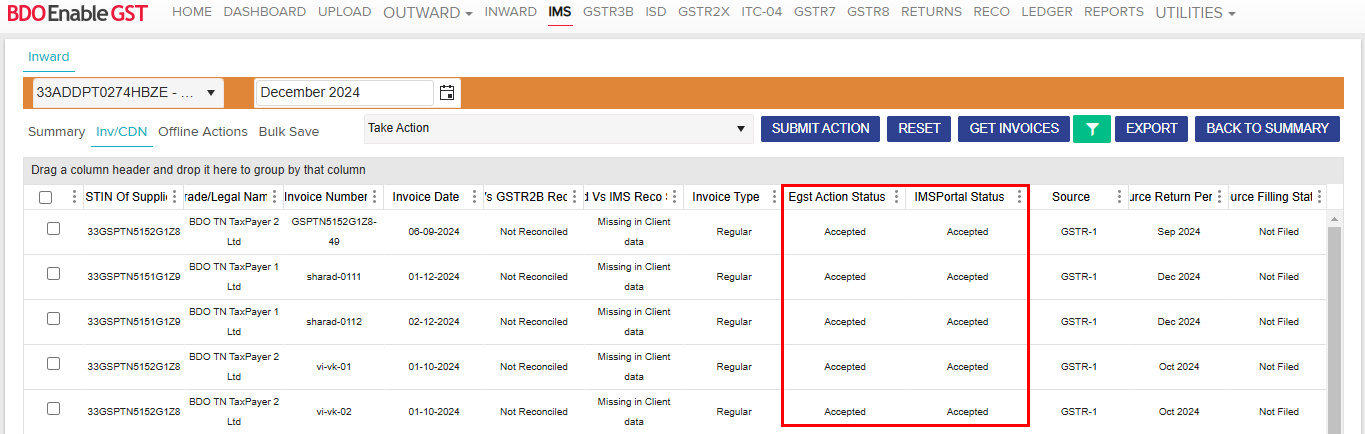
- Once the data is successfully uploaded, the action will appear in the invoice grid.
- The user can save actioned invoices in bulk using the “Bulk Save” option.
Select Transaction Type & click on save button.

Note:- Transactions on which action is taken in EGST will only be visible in Bulk Save.
- The same action taken in EGST will also be saved in IMS.

Thanks for reading!
Do you need any support or help?
Please write email to us on enablegst@bdo.in or call us on +022-41642211