-
- Access the https://enablegst.bdo.in URL. EnableGST Home page will be displayed.
- Login to the EnableGST Portal with valid credentials i.e. your user id and password.
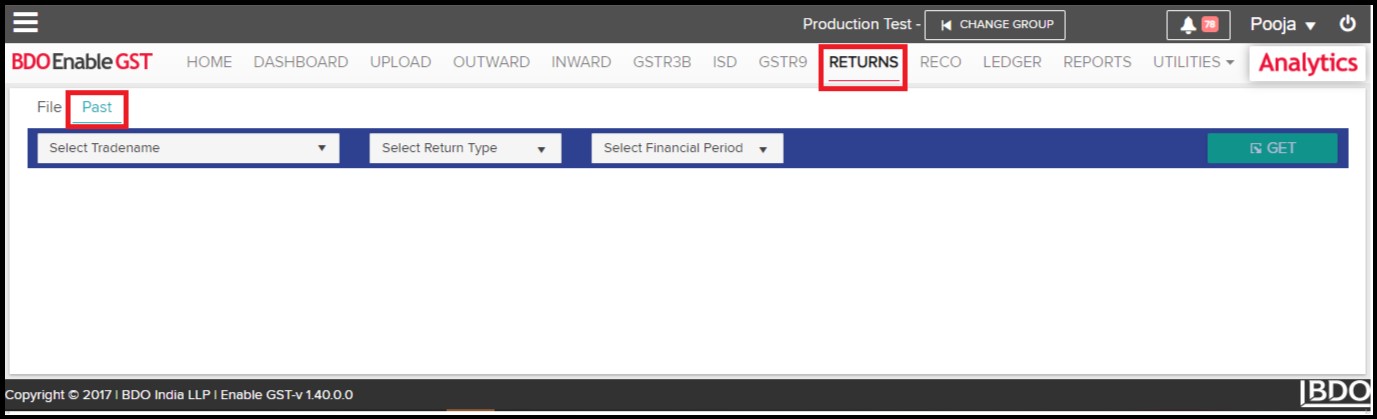
- Click on Returns Tab and select the Past Tab.
GSTR3B Download
-
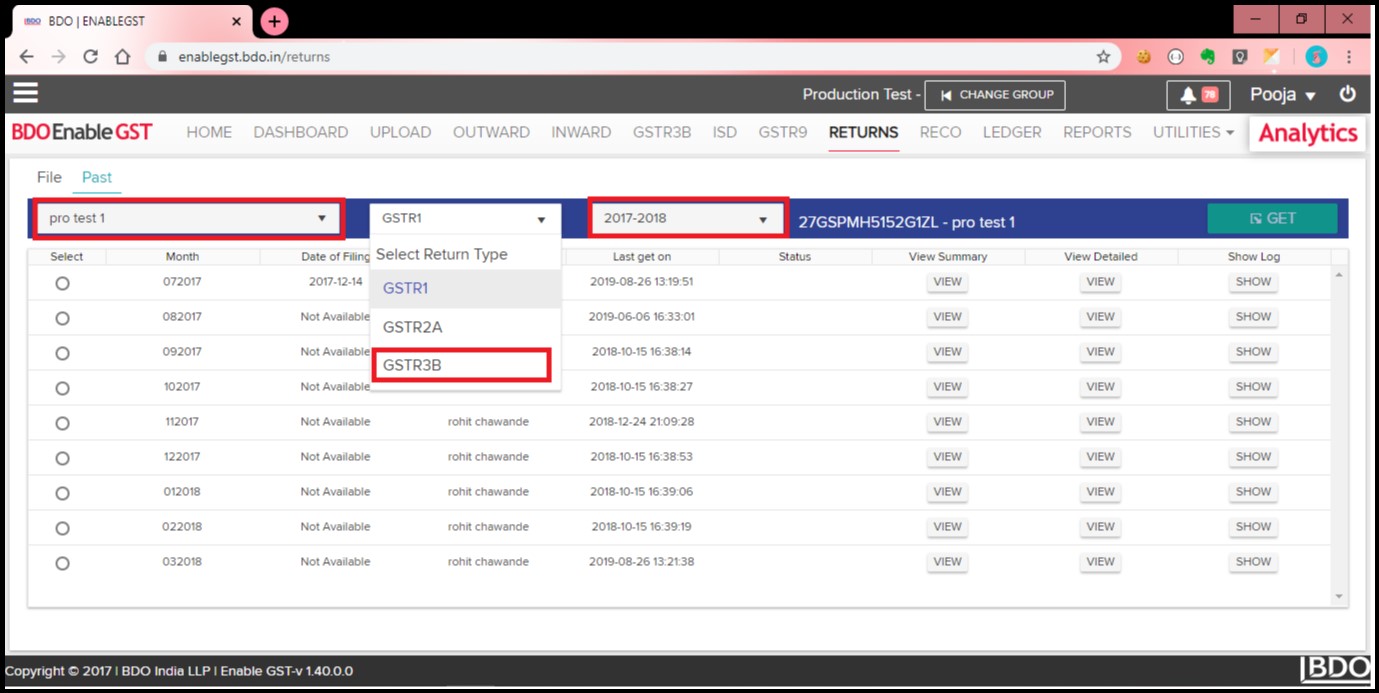
- Select Tradename, Financial Period & Select Return Type.
-
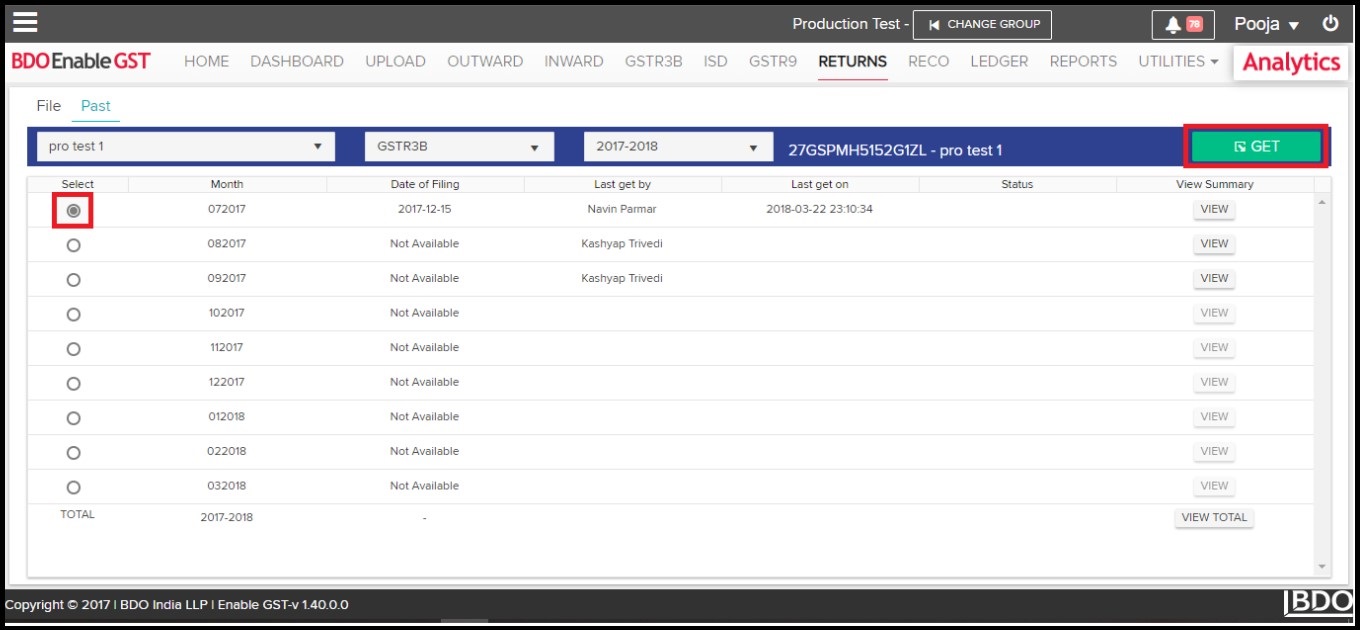
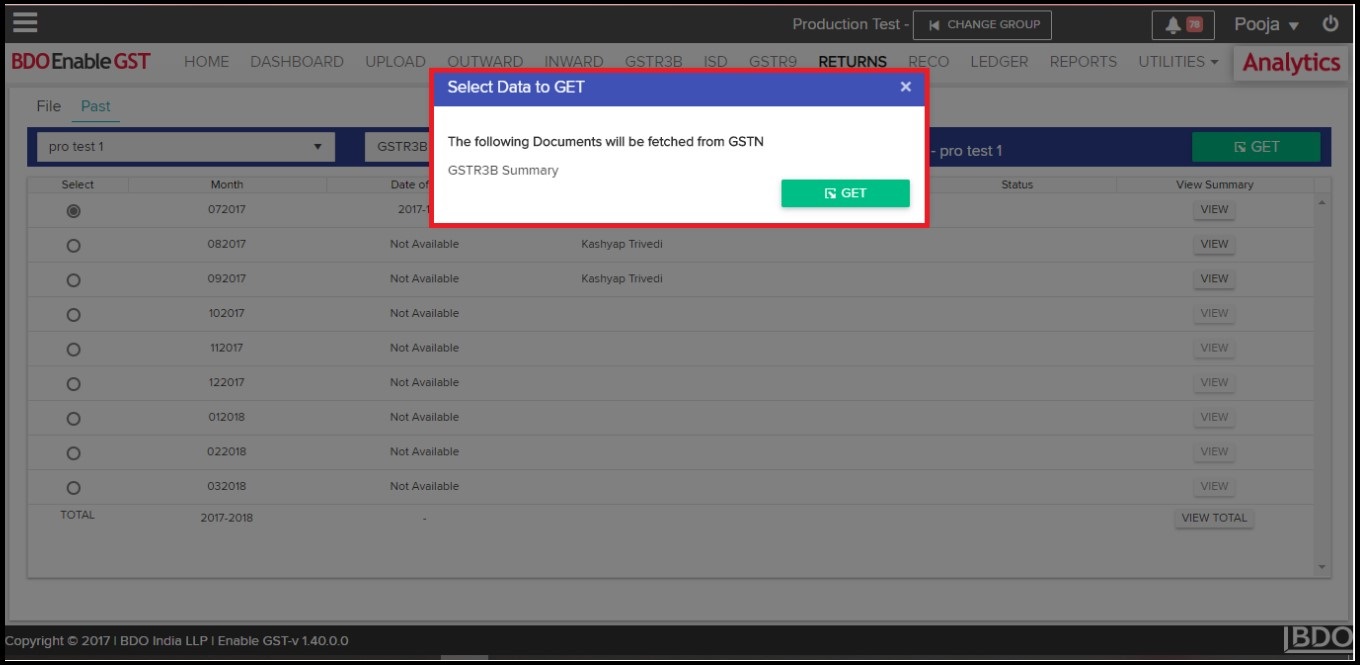
- Once you select respective month then “GET” button will be activated. Click on “Get”, you shall get pop-up mentioning “Select Data To GET”. Click on the “Summary” check box & than click on GET.
-
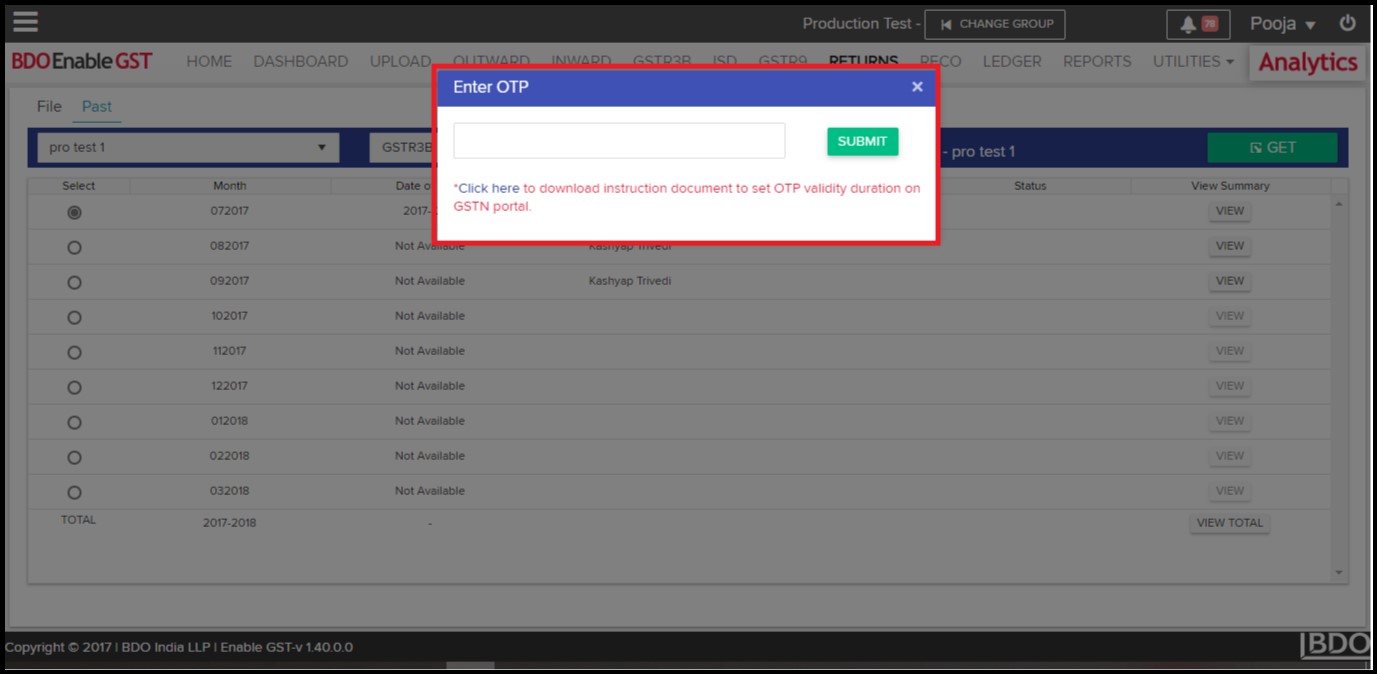
- Once you click on “GET”, system shall ask for OTP to proceed further. Kindly make a note, the OTP shall be delivered to the email id & mobile no. which has been registered with GSTN portal.
-
- Data fetched from GSTN can be viewed & downloaded in the summary form.
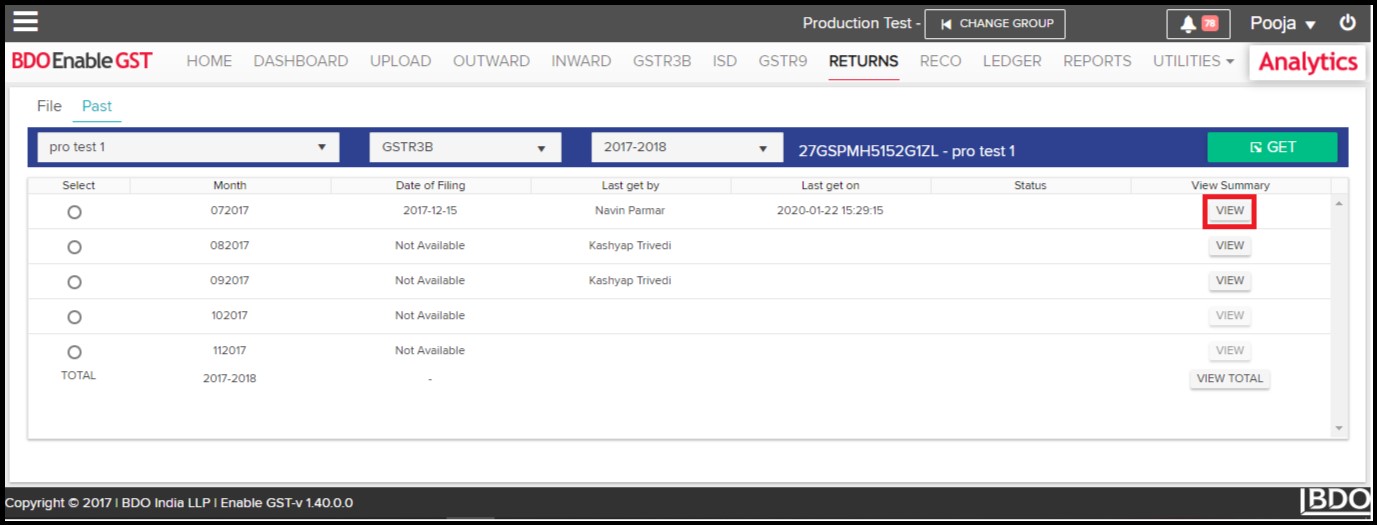
- View Summary Data: Click on “View” under view summary section to view GSTR3B return data for the selected return period.
- Data fetched from GSTN can be viewed & downloaded in the summary form.
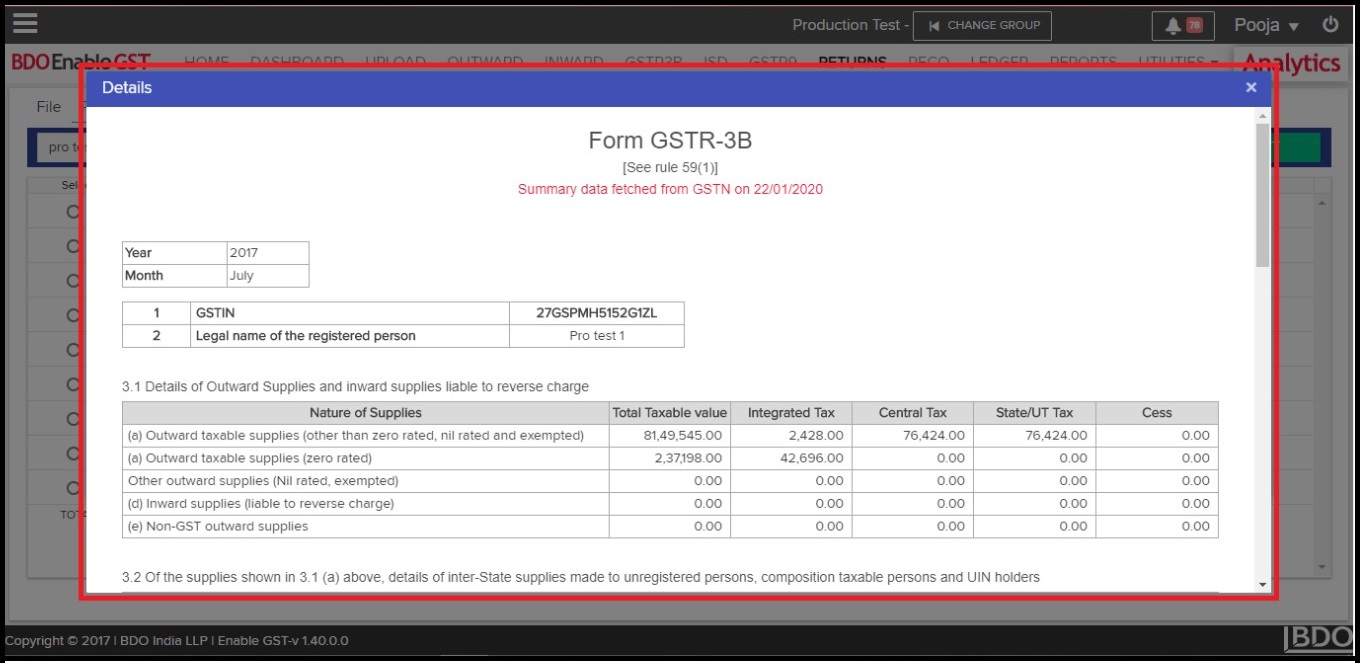
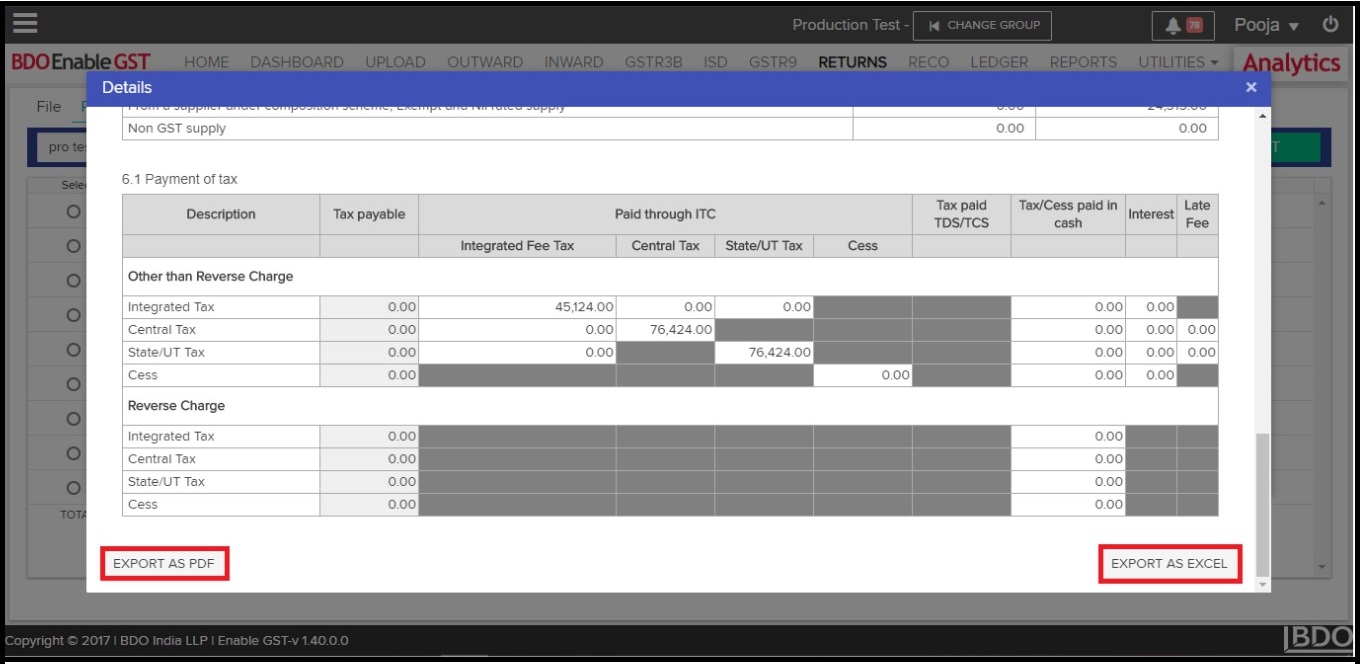
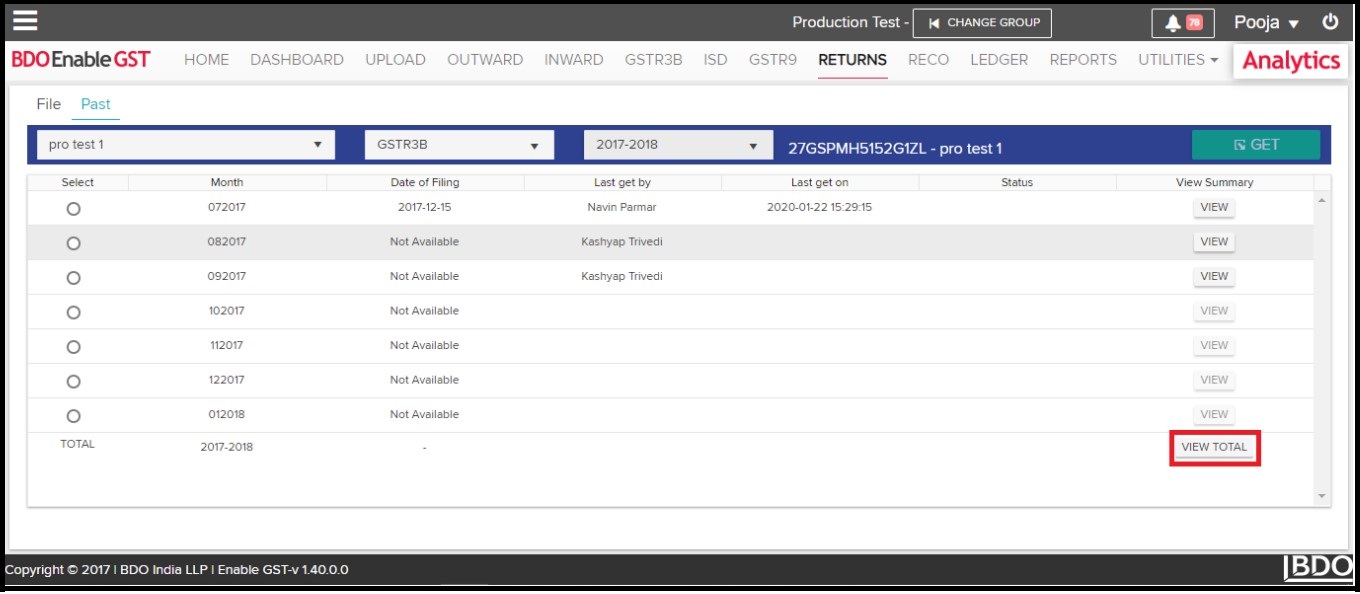
User can download return summary details by clicking on “Export As PDF” or “Export As Excel”. & also user can download return financial year details by clicking on “View Total”.
GSTR1 Download
-
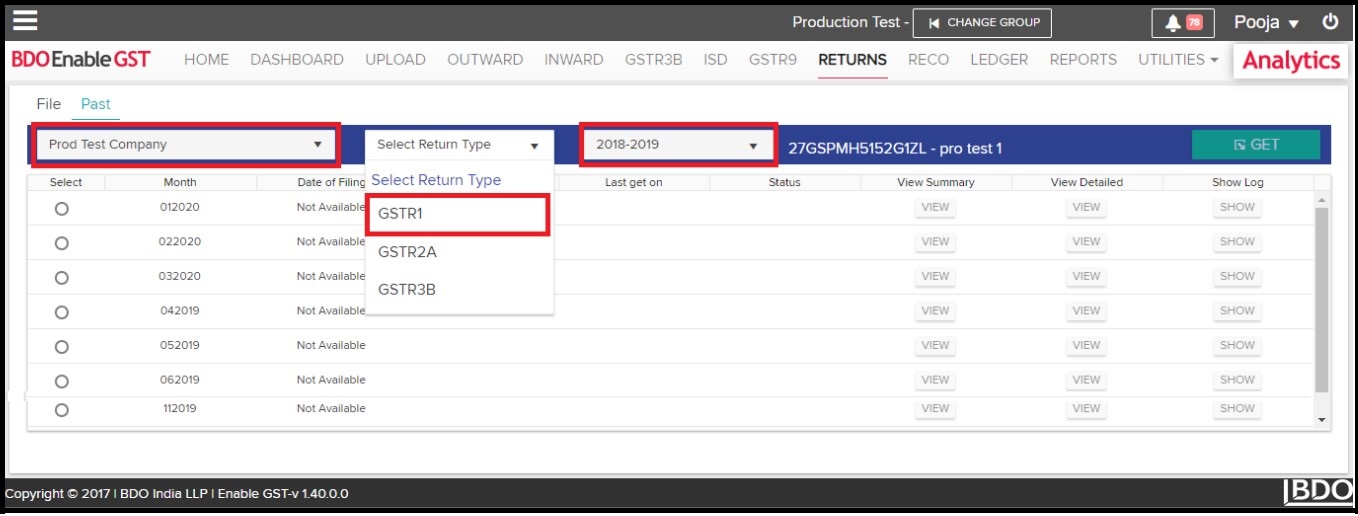
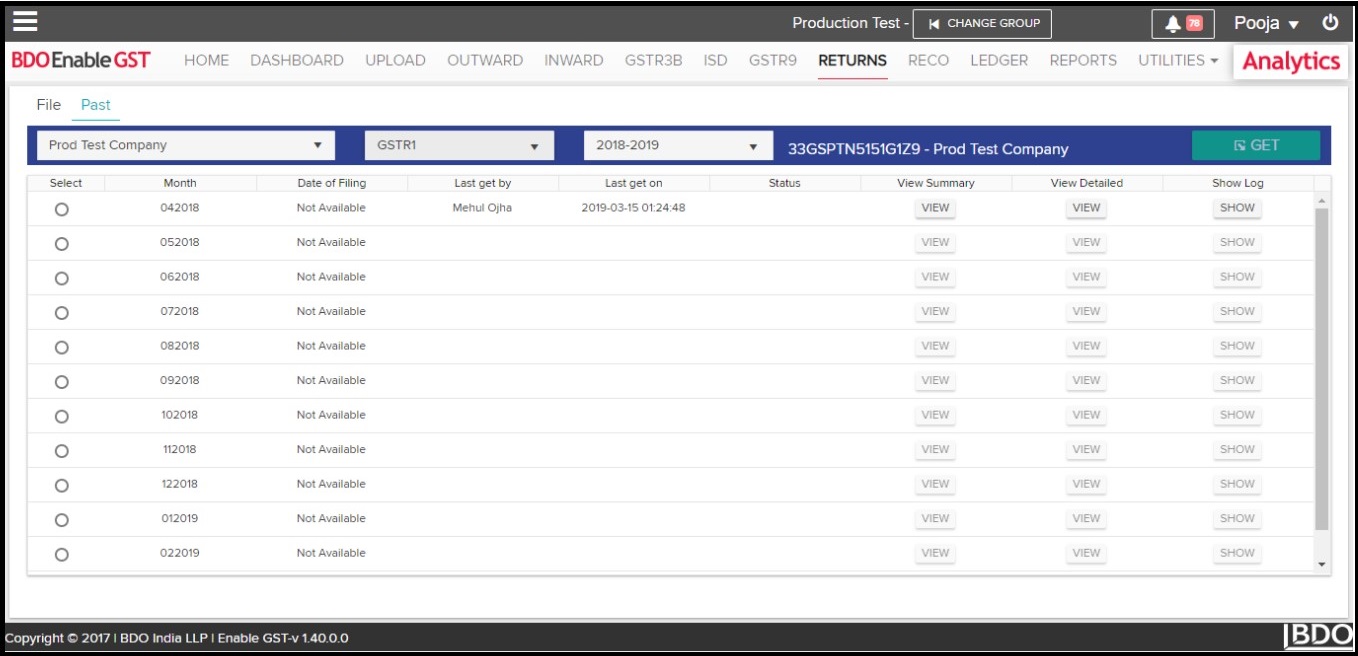
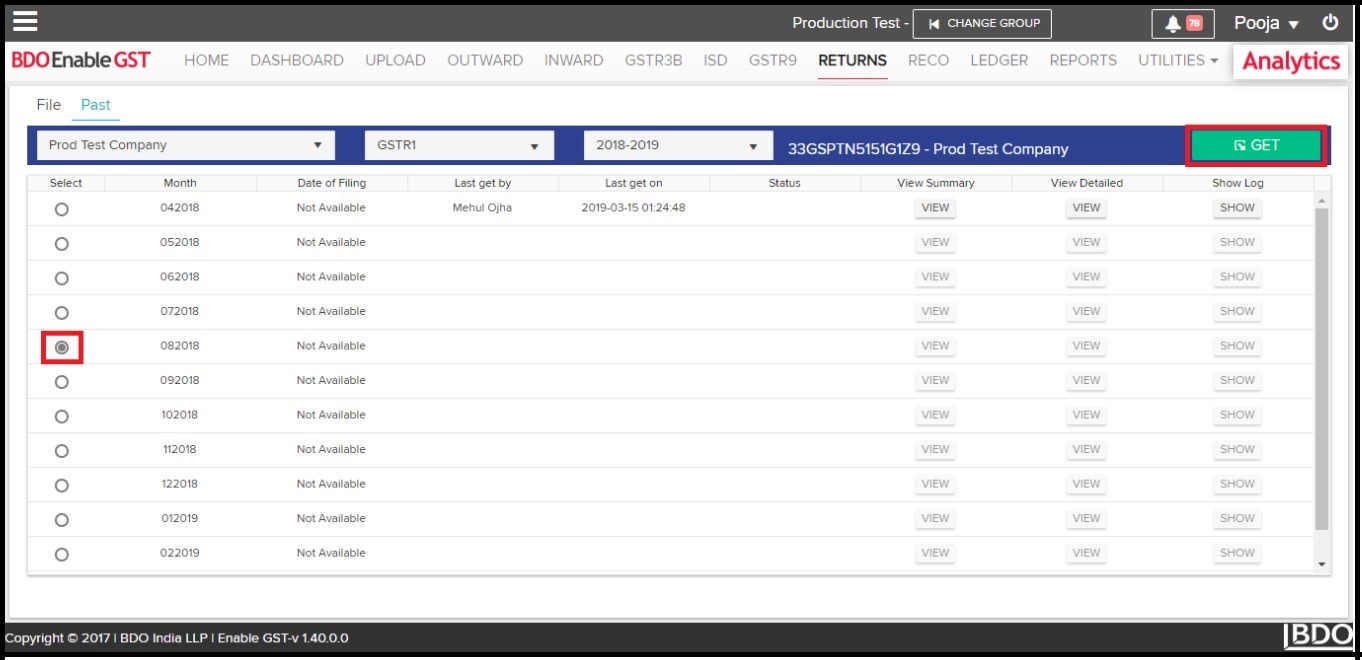
- Select Trade Name, select financial period and then select “GSTR1” return type. All return periods for the selected financial year will be populated.
-
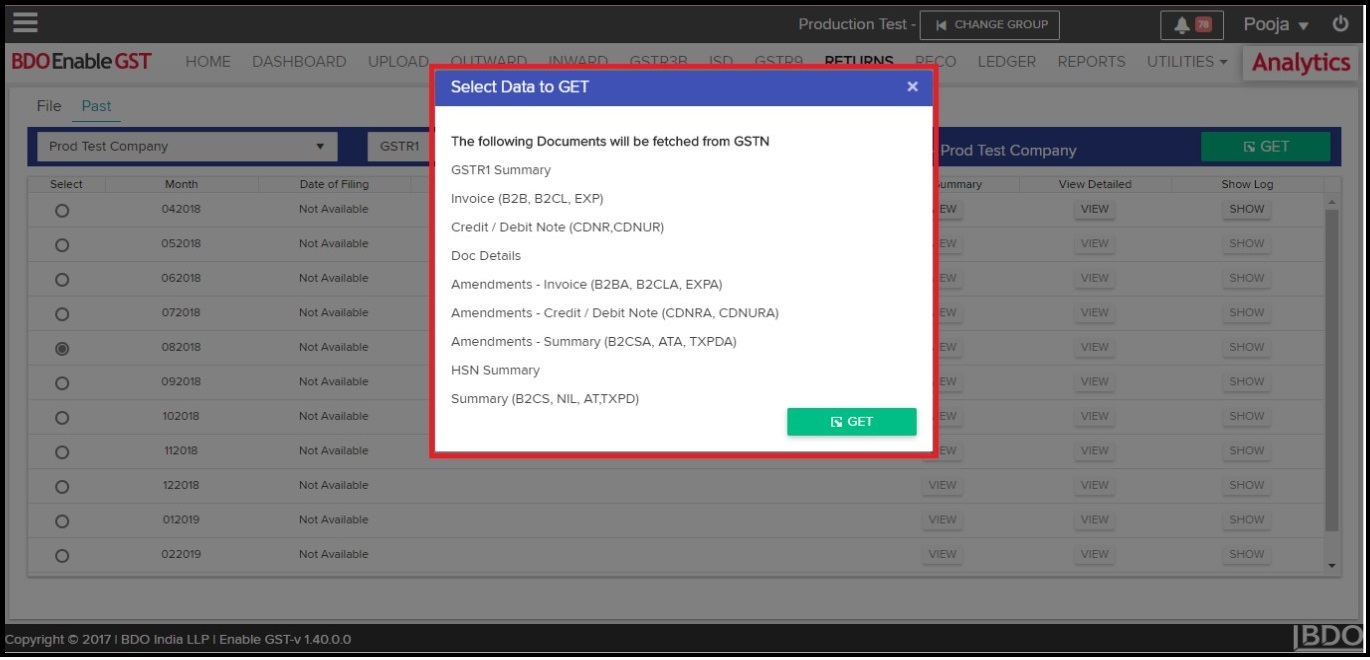
- Select one return period and click on “GET”. It will prompt you to “Select Data To GET”. Kindly select the check boxes for the data that you wish to get from GSTN.
-
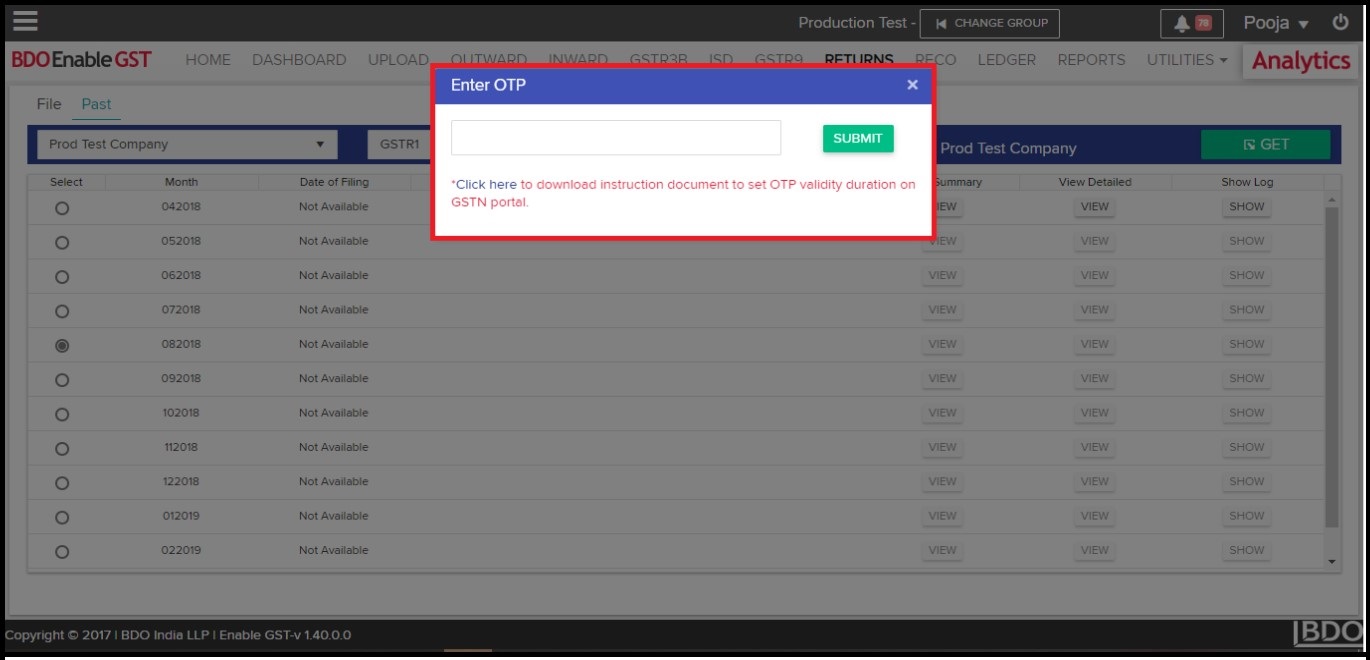
- Once you click on “GET”, system shall ask for OTP to proceed further. Kindly make a note, the OTP shall be delivered to the email id & mobile no. which has been registered with GSTN portal.
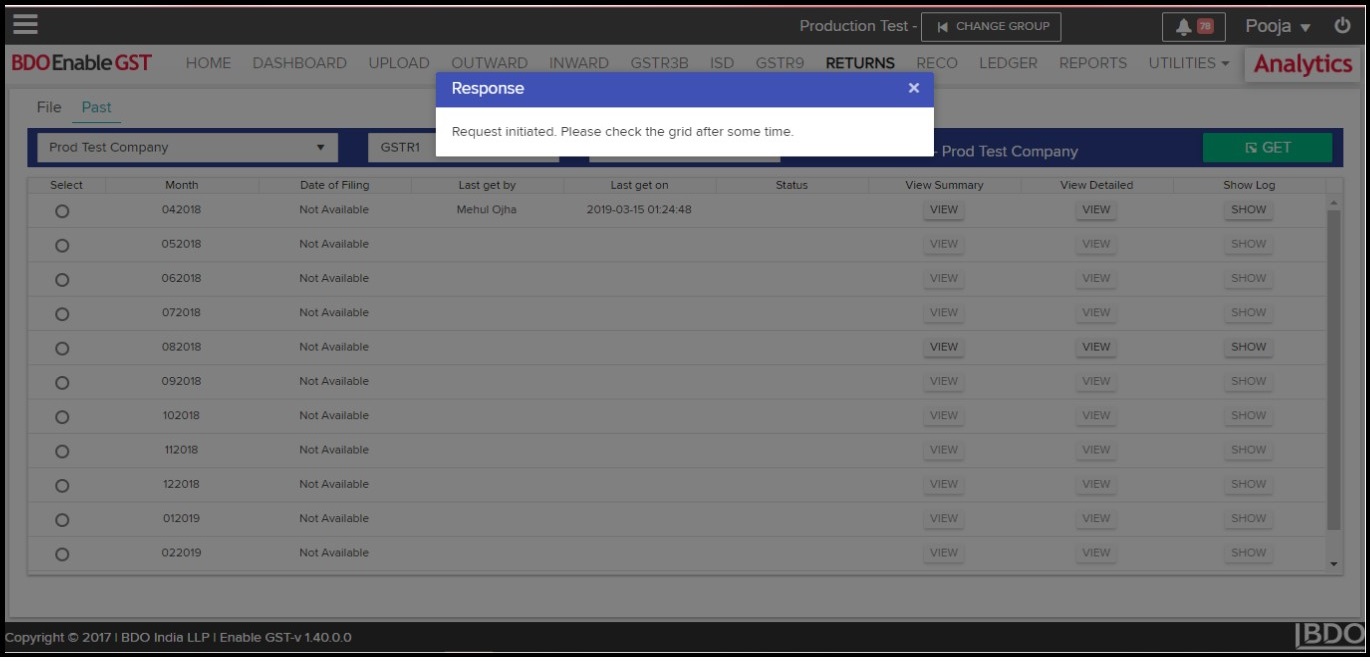
- Click on “Submit”, a pop-up will be displayed stating “Request initiated. Please check the grid after some time.”
-
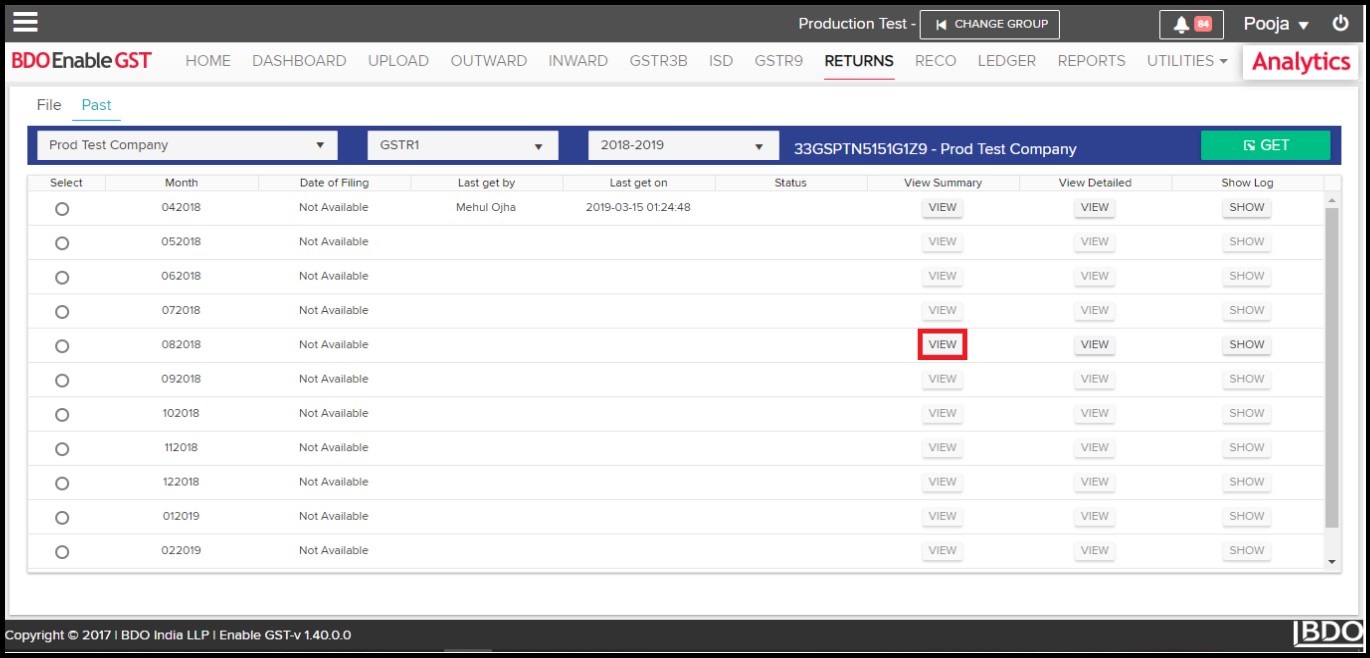
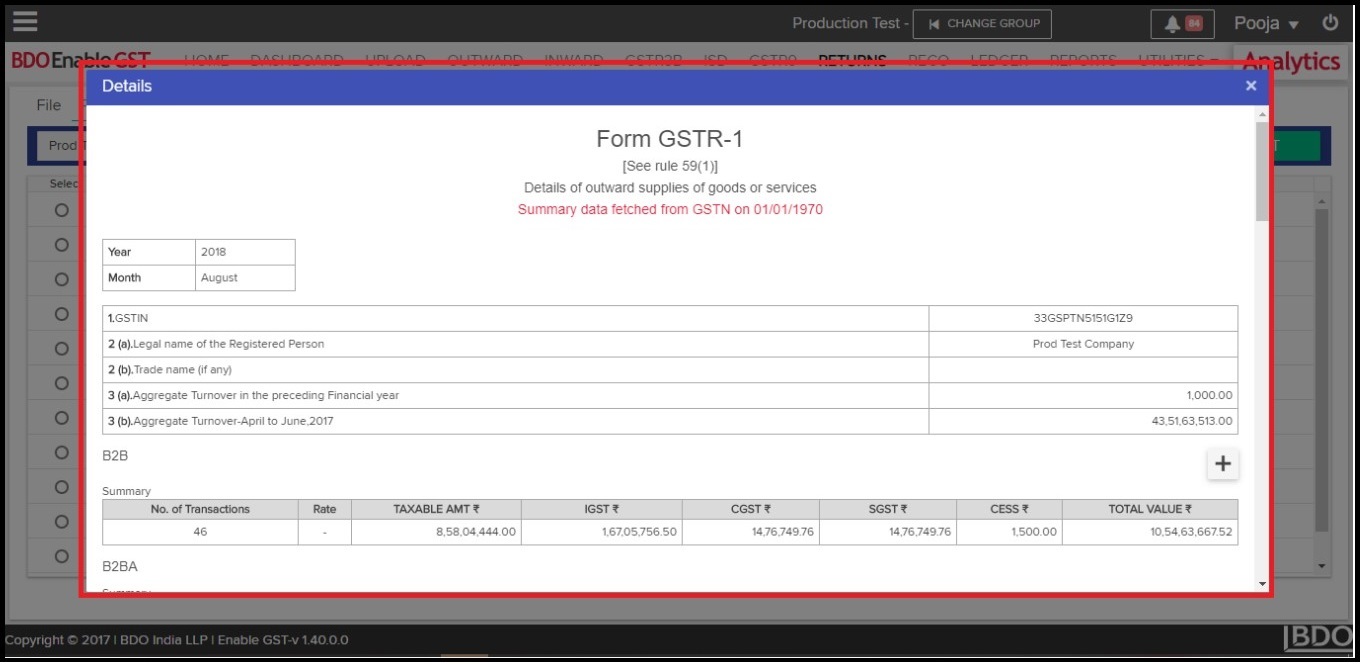
- Data fetched from GSTN can be viewed & downloaded in the form of summary as well as at the detailed level.
- View Summary Data: Click on “View” button under View Summary section to view summary of GSTR1 return for the selected return period.
- Data fetched from GSTN can be viewed & downloaded in the form of summary as well as at the detailed level.
-
-
-
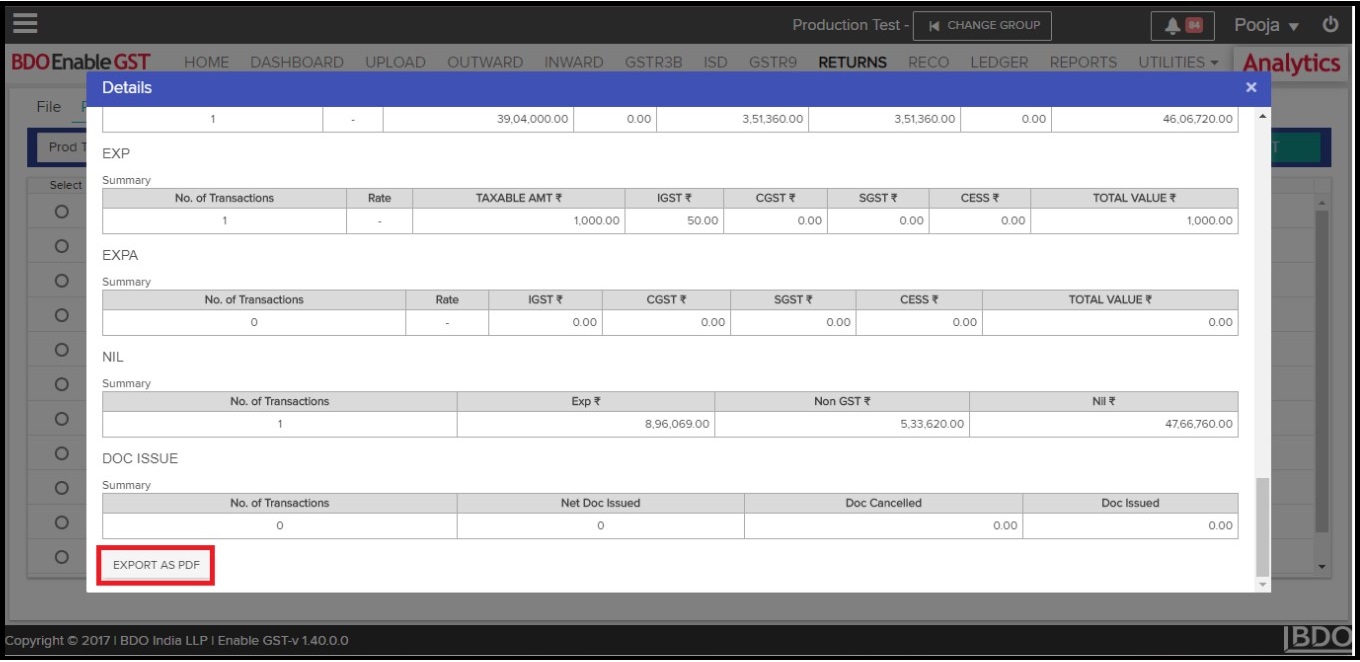
- User can download return summary by clicking on “Export As PDF” button.
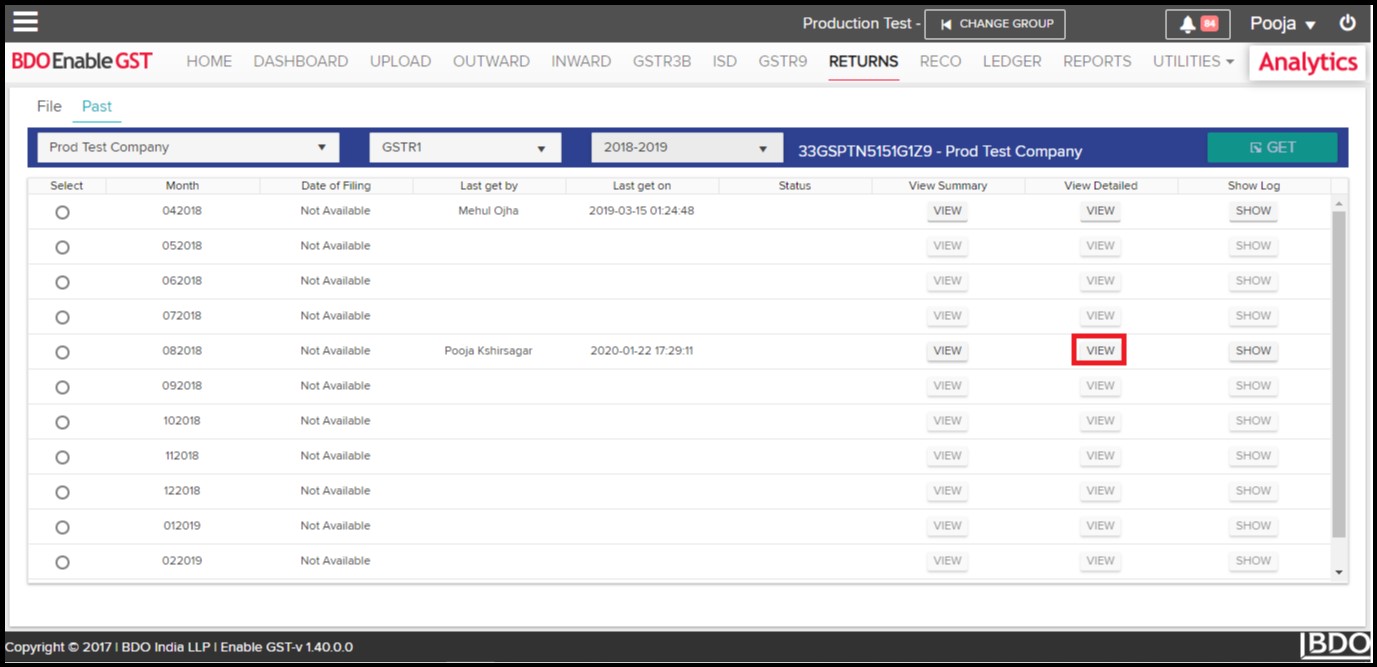
- View Detailed Data: Line level data can be viewed & downloaded in excel format by clicking on “View” button under “View Detailed” section.
-
-
-
-
-
- Once you click on ‘View’ following page will displayed. “Log” tab will show what activities have been performed i.e. Invoice, Credit / Debit Note, Doc Details & Amendments along with the return period & the user who have performed these activities.
-
-
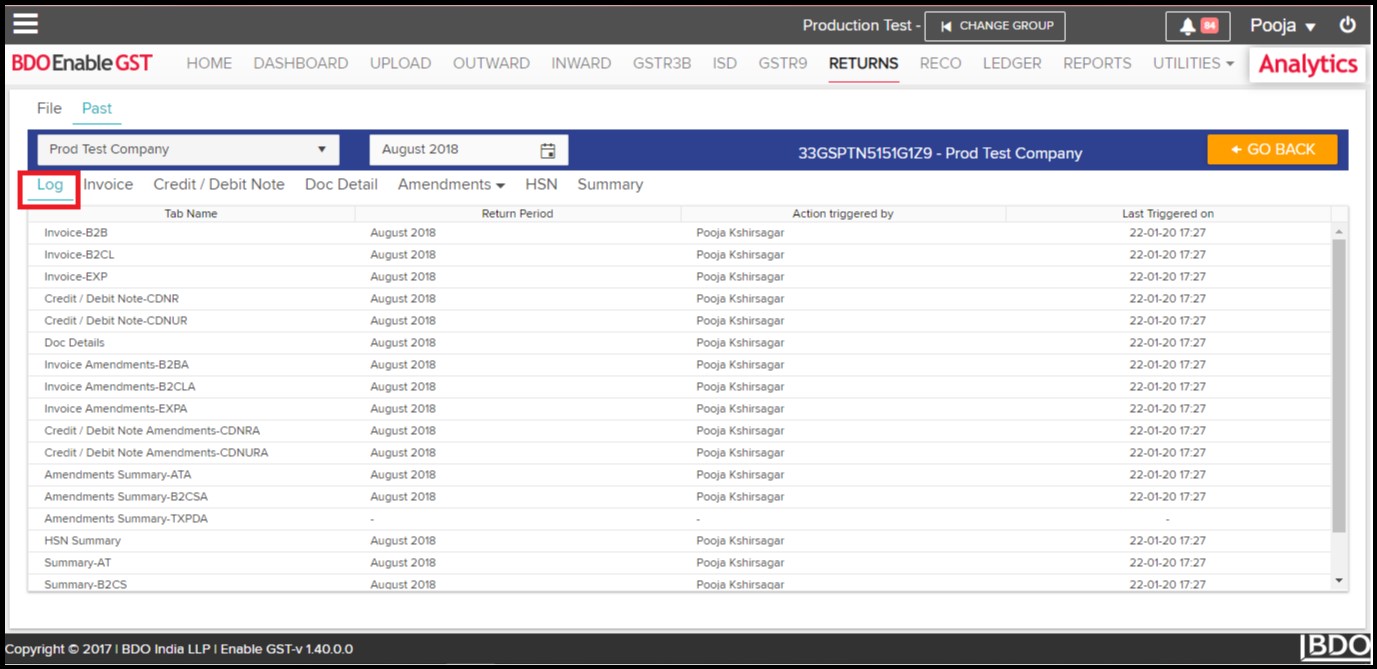
User will be able to view & download following details:
-
-
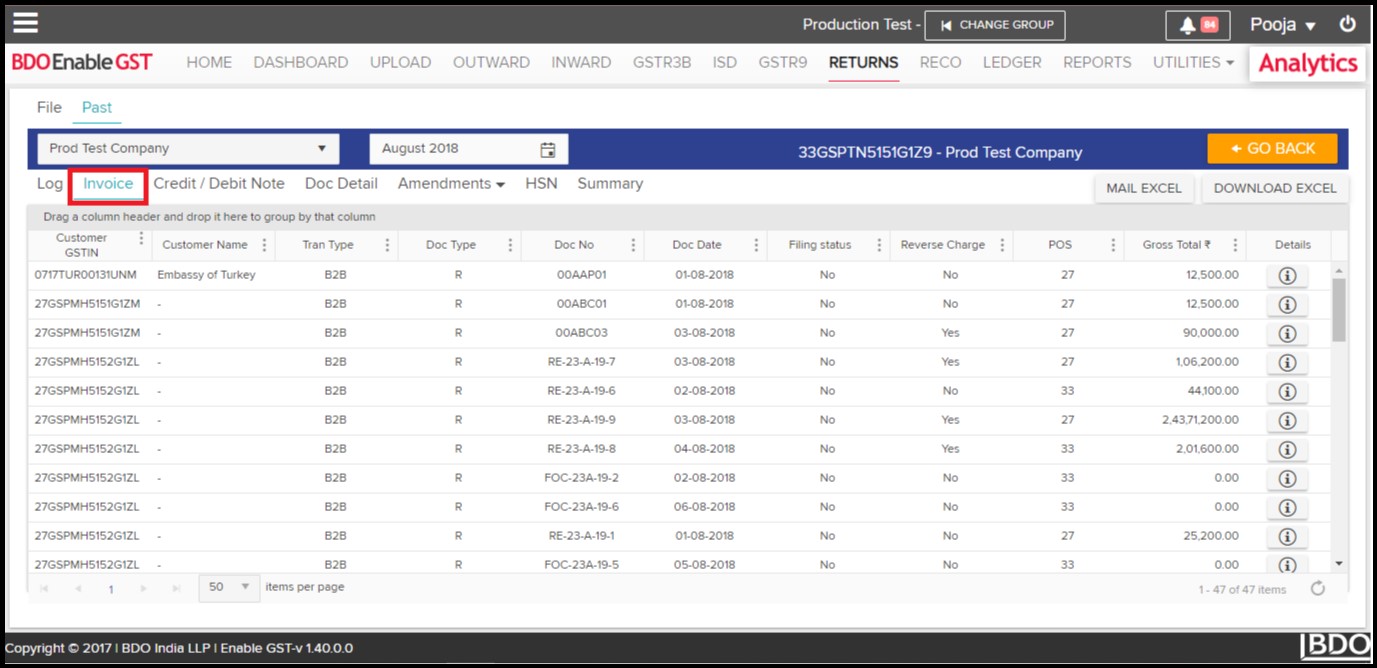
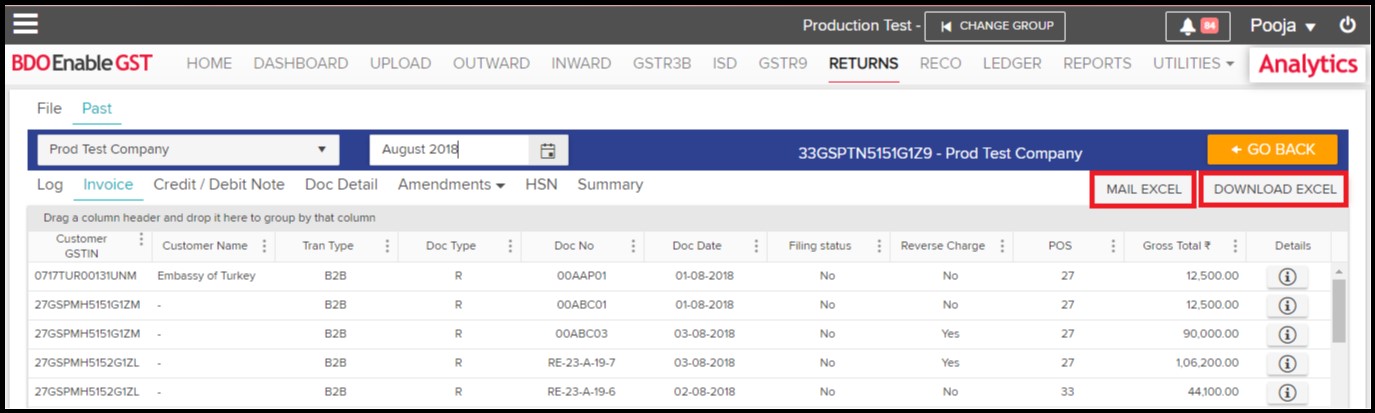
- Invoices: All B2B, B2CL & Export records shall be visible in this section.
-
-
-
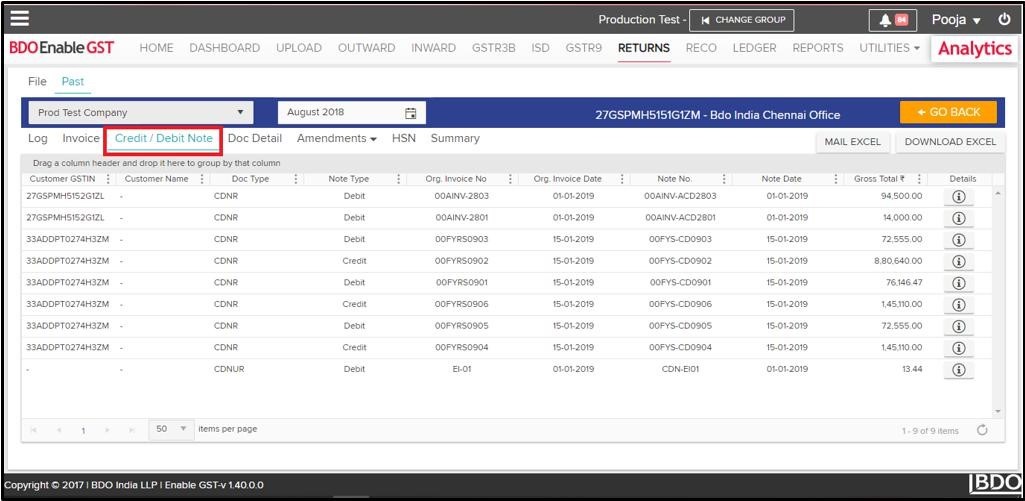
- Credit/Debit Note: All Credit/Debit Notes both Registered & Unregistered shall be visible in this section.
-
-
-
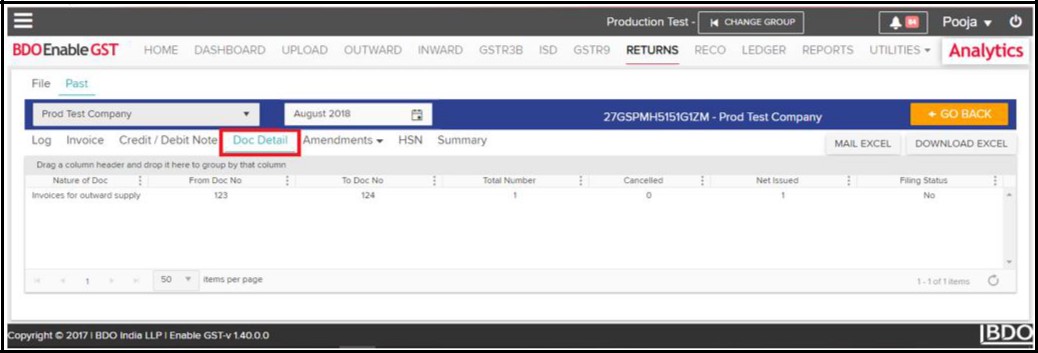
- Doc Detail: All Document details shall be visible in this section.
-
-
-
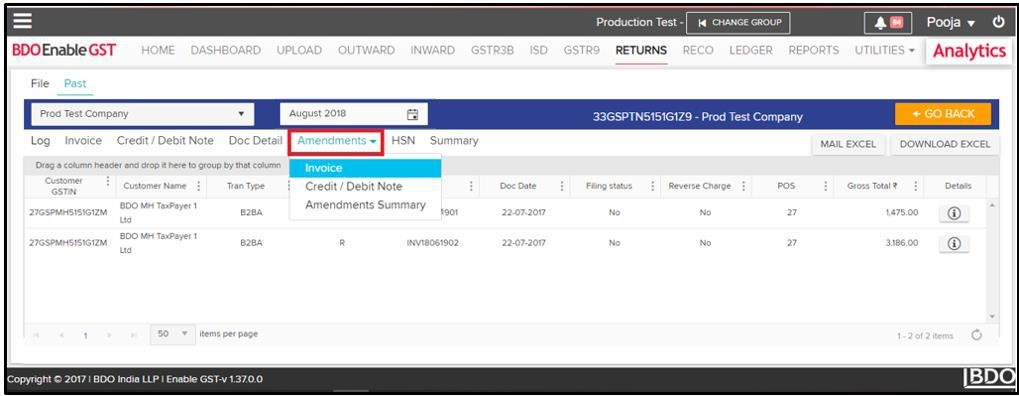
- Amendments: All amendments made to Invoices & Credit/Debit Notes which were filed in the previous period & Amendments Summary shall be visible in this section.
-
-
-
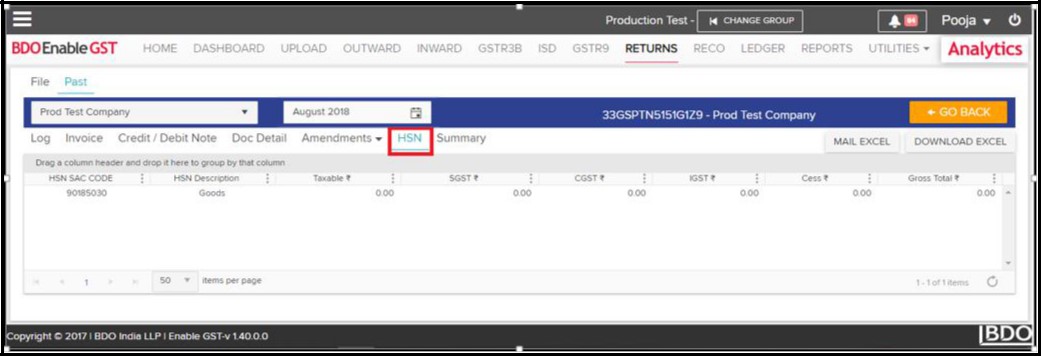
- HSN Summary: HSN wise summation shall be visible in this section.
-
-
-
- Summary: All B2CS, NIL Rated & Tax on Advance related records shall be visible in this section.
-
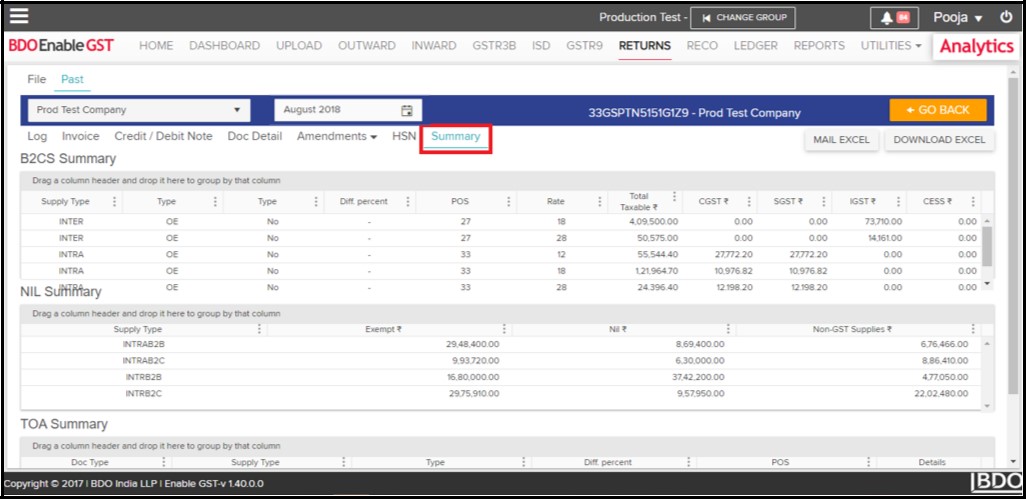
Please Note: You can download all these records by clicking on “Mail Excel or Download Excel” option in the Respective sections.
-
- Once you have completed with all the above-mentioned steps go to the “Reco” Tab for Reconciliation Process.
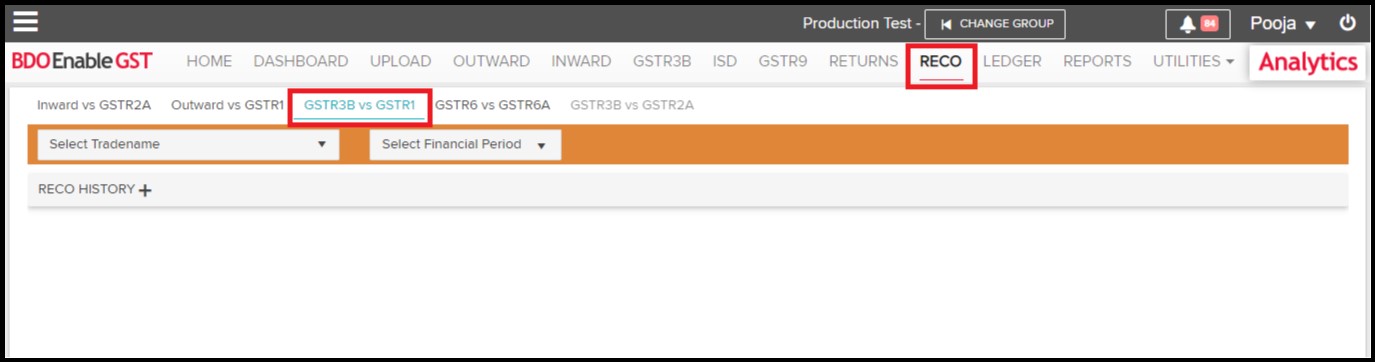
- Click on “Reco” Tab, then select GSTR3B vs GSTR1.
- Once you have completed with all the above-mentioned steps go to the “Reco” Tab for Reconciliation Process.
-
-
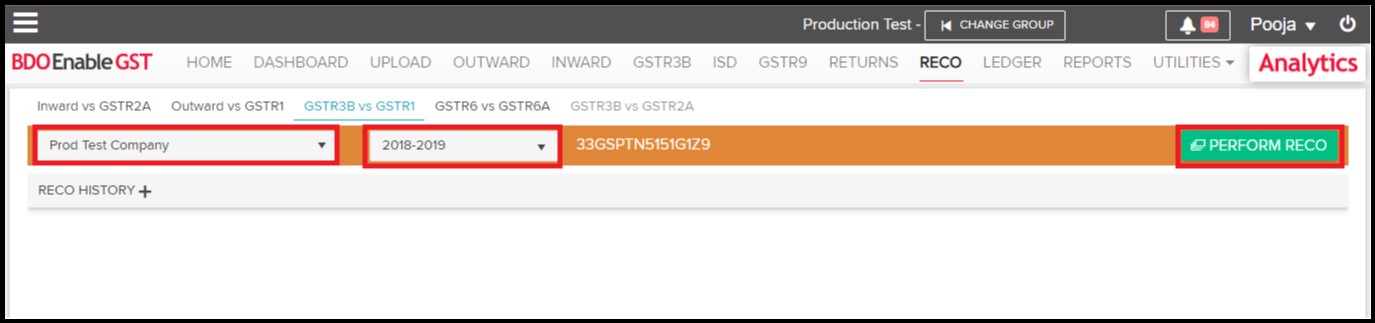
- Select the Trade Name i.e. GSTIN & Financial Period & click on “Perform Reco” button.
-
-
-
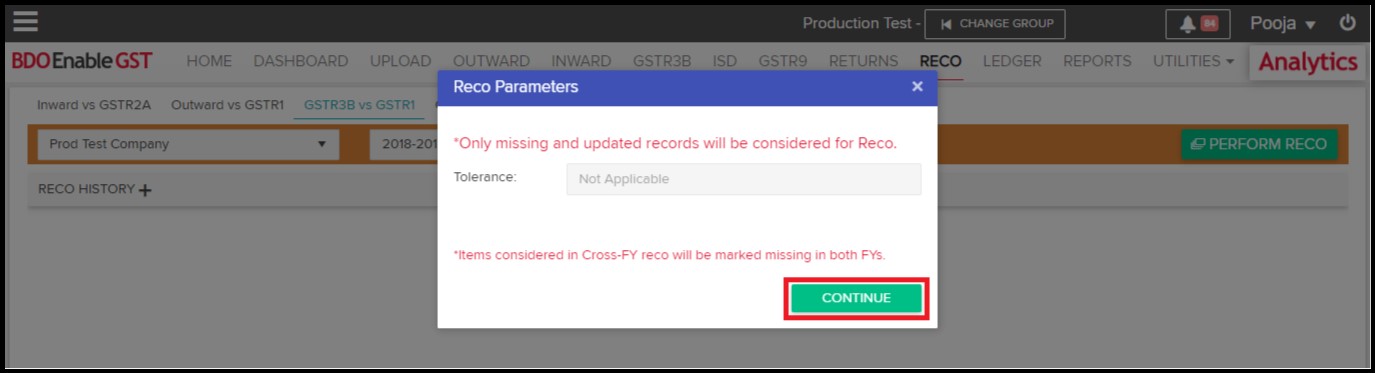
- When you click on “Perform Reco” it shall ask user for Tolerance, but it is not applicable. Click on “Continue”.
-
-
-
- A pop-up is displayed stating “Reco under process. Please check the grid below for Reco process.
-

-
-
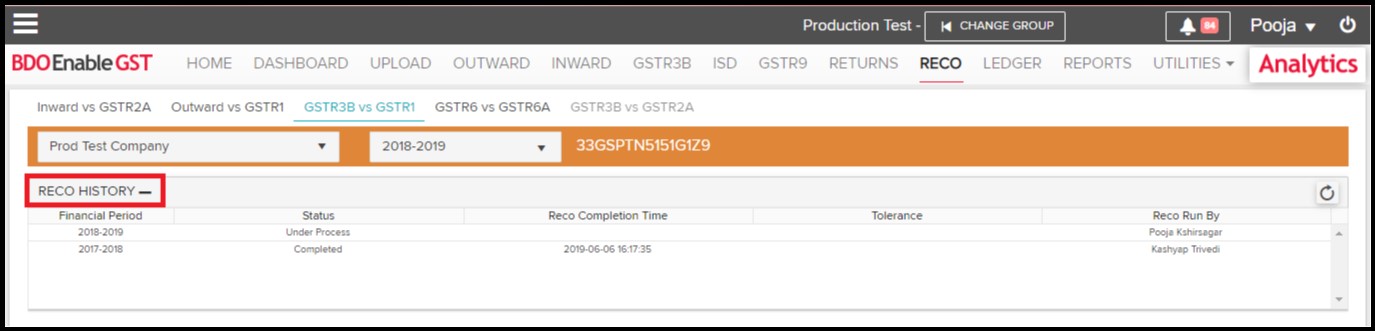
- While performing Reco it will show status in Reco History whether it is (Under Process/ Completed/ Failed).
-
-
-
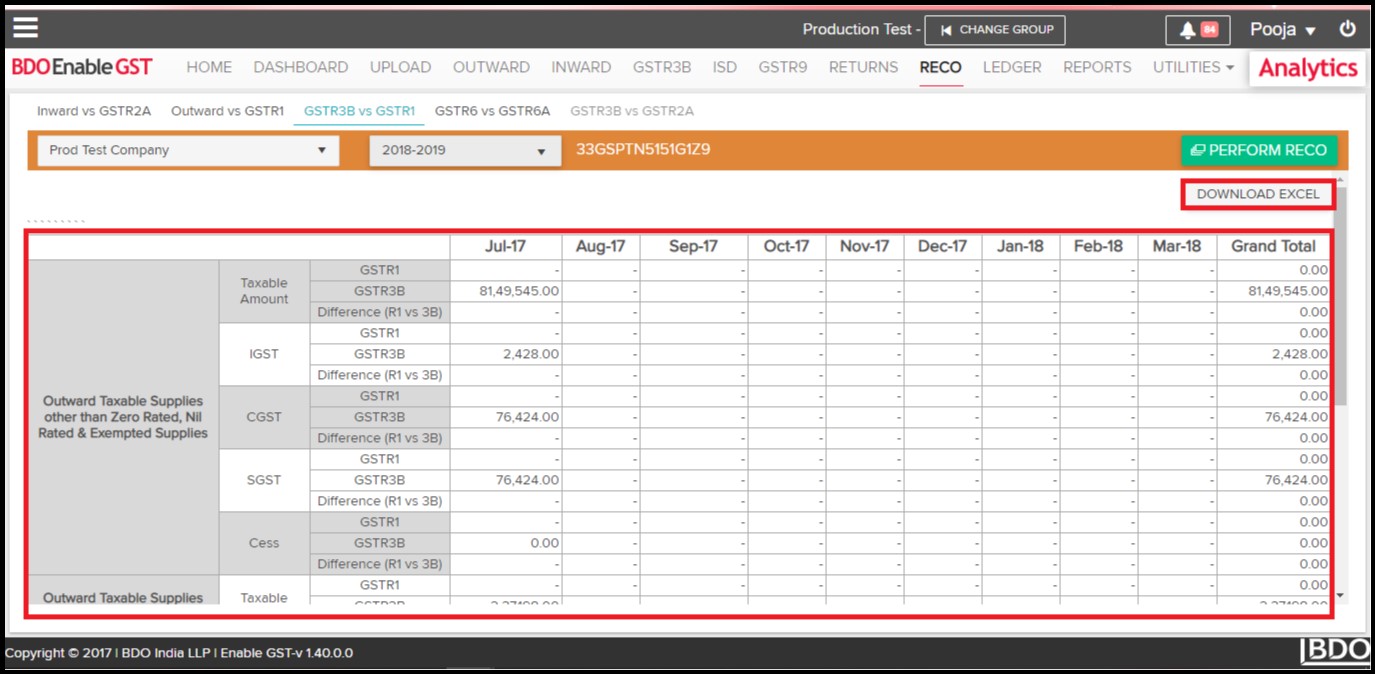
- After your Reconciliation Process is completed, you will be able to view the Output & download the data by clicking on “Download Excel” option.
-