- Access the https://enablegst.bdo.in URL. Enable GST Home page will be displayed.
- Login to the Enable GST Portal with valid credentials i.e., your User Id and password.
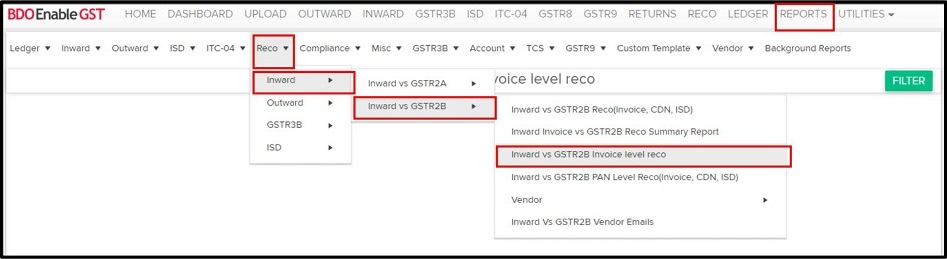
- Click on Reports >> Reco >> Inward >> Inward vs GSTR2B >> Invoice vs GSTR2B Invoice Level Reco Report.
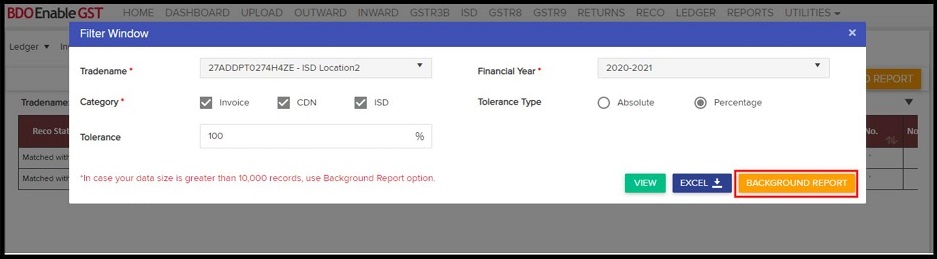
- Select a Tradename, Financial Year and Category.
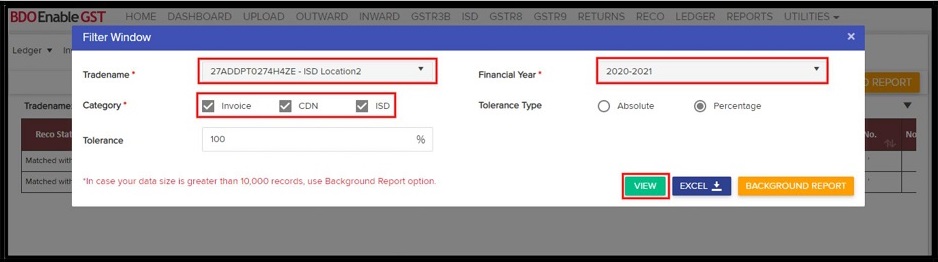
Note: Tolerance values are optional if require you can select or you can keep it as blank. Also, User can able to give tolerance in two type absolute OR Percentage.And User also have option to select Category, Invoice or CDN or ISD transection filter.
Option 1:
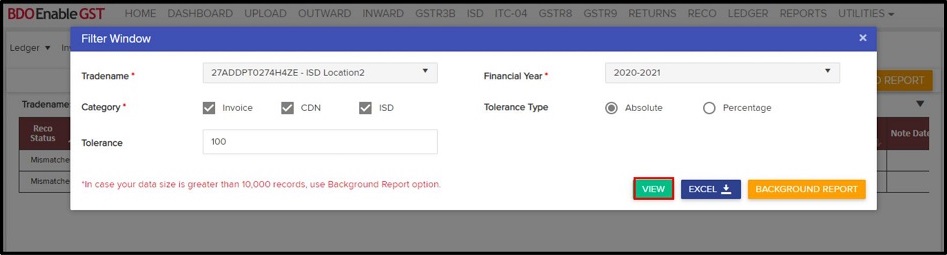
If you click on “View” button it will view the data.
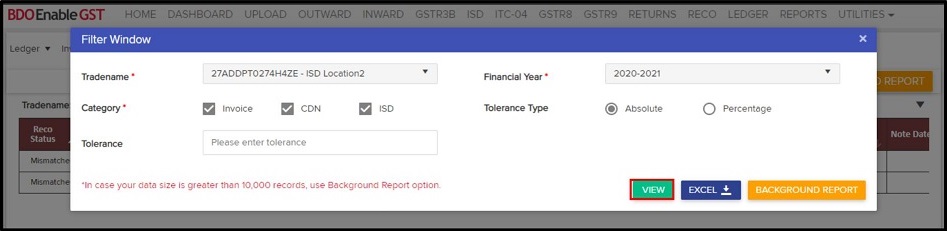
You can change selection of Tradename, Financial Year and Category by clicking on Filter.
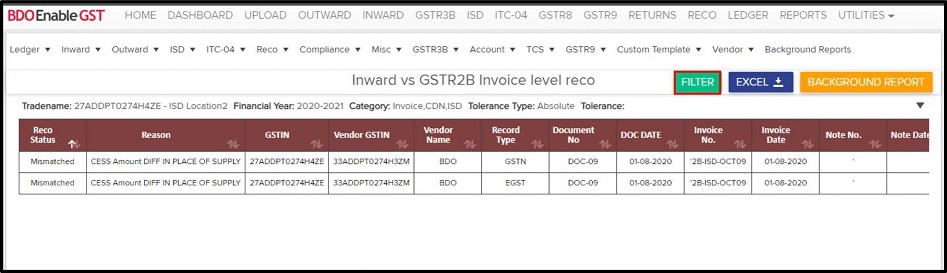
Note: In this report it only shows mismatch invoices and you can alter the tolerance value accordingly after that those invoices will be shown as a match with tolerance but no impact in other reco report.
- You can set tolerance value.
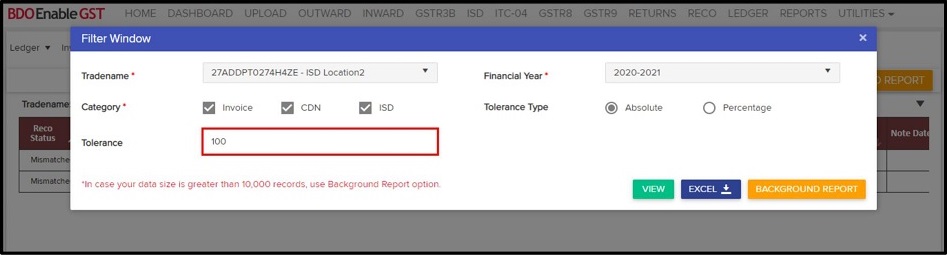
- Once your tolerance value is set then click on view.
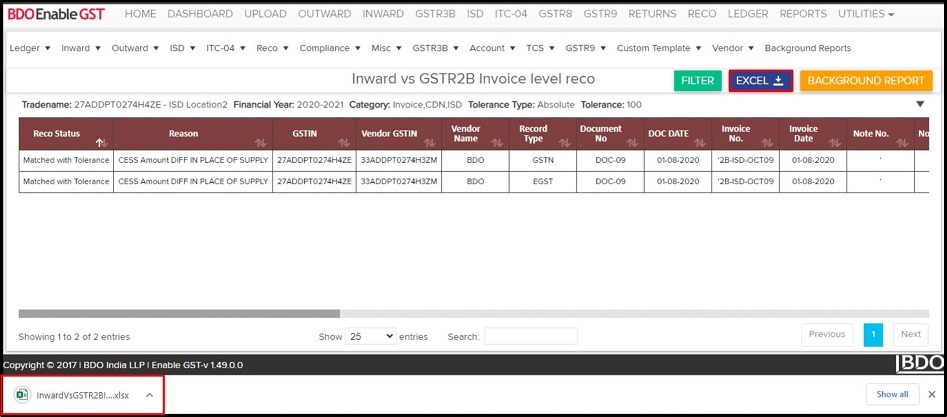
- Here you can see reco status show matched with tolerance.

Option 2:
You can click on “EXCEL” button to download the report for your reference.

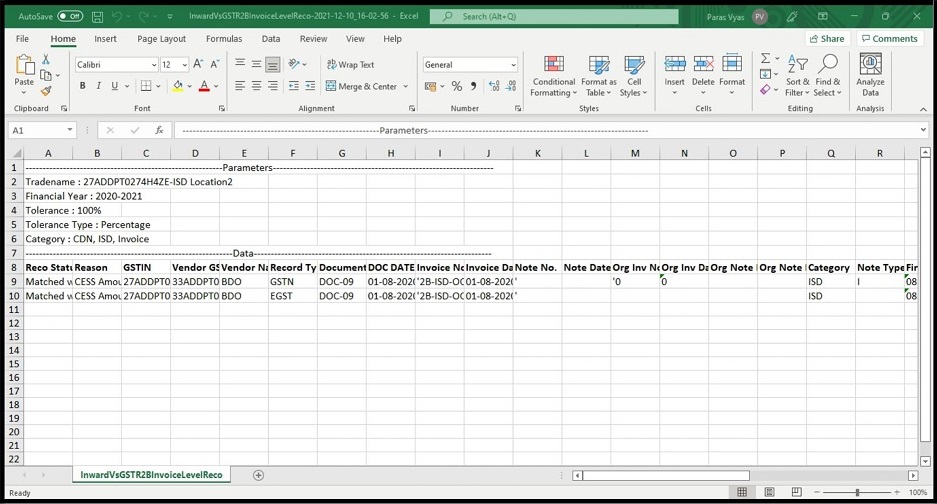
Option 3:
Click on “Background Report” button to download report at the background.
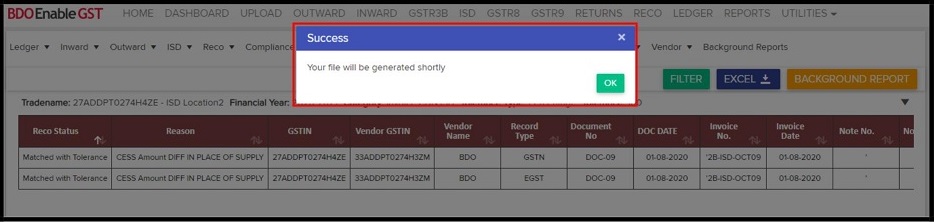
You can view the status & extract the Report from Reports >> Background Report >> Click on download icon



