- Access the https://enablegst.bdo.in URL. BDO EnableGST Home page will be displayed.
- Login to the EnableGST Portal with valid credentials i.e. your user Id and password
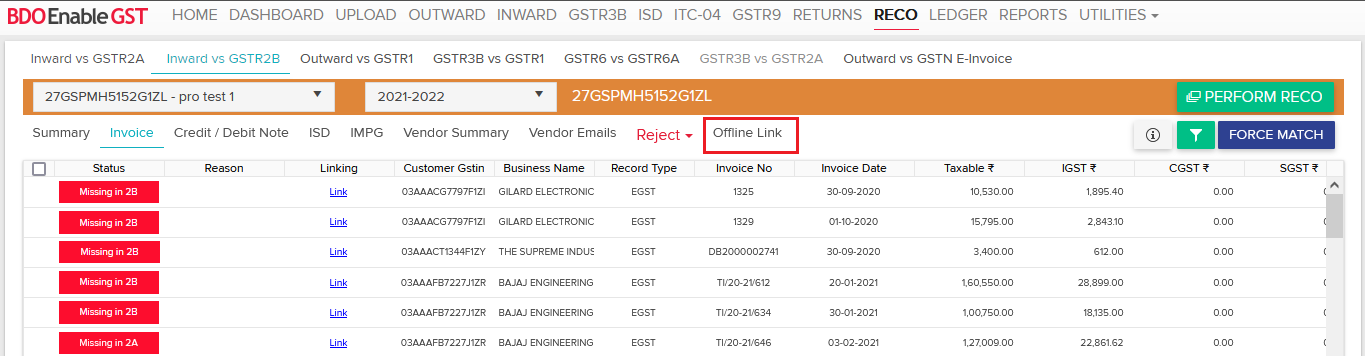
- Click on Reco Tab, Select Trade Name & Financial Period >> Click on “Offline Link” option.
After performing the reconciliation, the records which are having “Missing in Client Data” & “Missing in 2B” statuses can be exported in excel using Offline Link option.
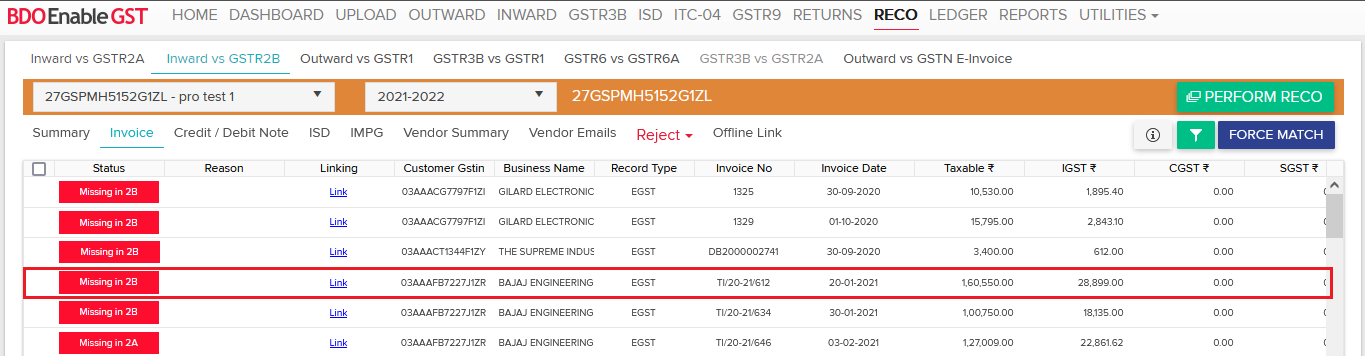
- Go to the “Reco” tab. select the Trade Name i.e. GSTIN & Financial Period. Select the module either Invoice or Credit/Debit Note & click on “Perform Reco” button.


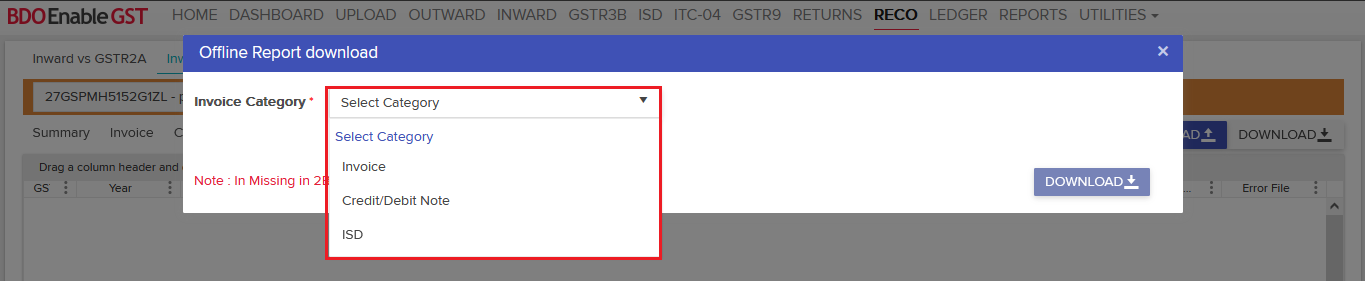
- Once the reco is completed click on “Offline Link”. Select Invoice, Credit Debit Note or ISD & click on “Download” option.
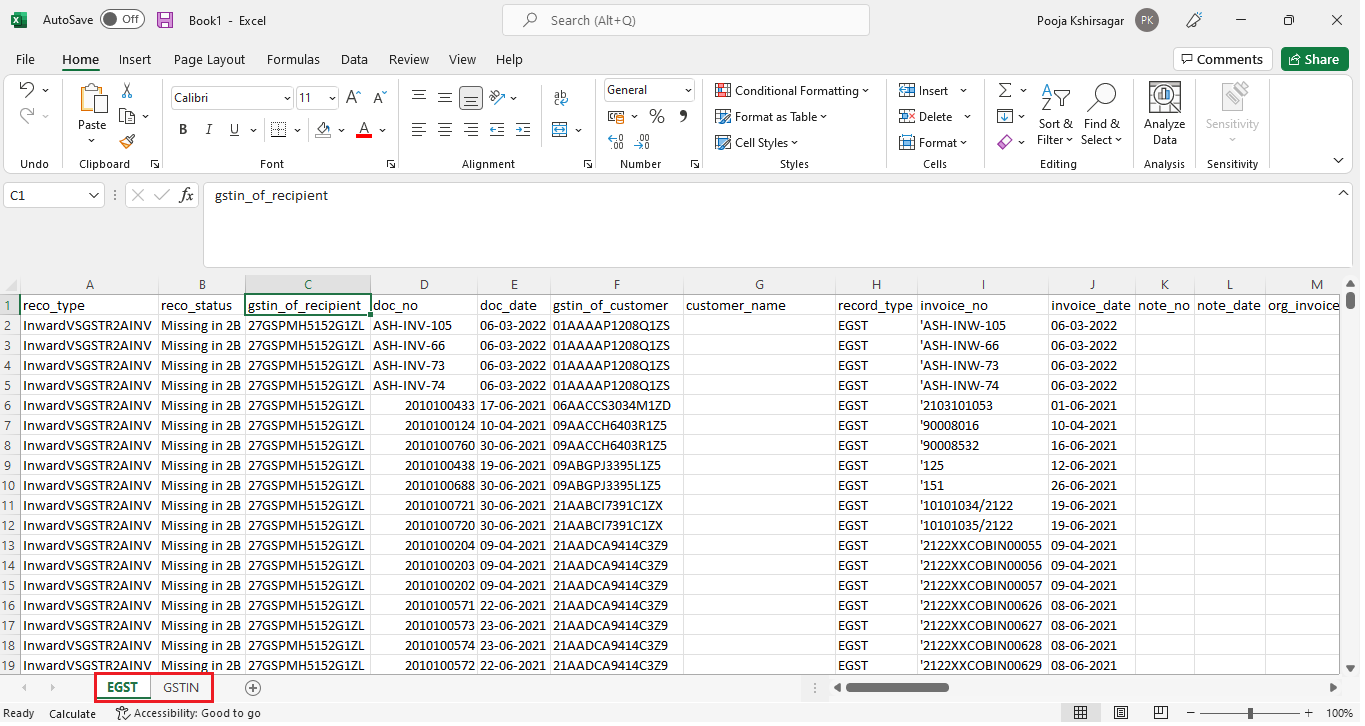
- Once the excel is downloaded, you will be able to see two sheets i.e. EGST & GSTN.
- EGST Sheet: Completely non-editable & shall contain vendor wise all EGST records with status as “Missing in 2B”
- GSTN Sheet: Vendor wise GSTN records with status as “Missing in Client Data”. There will be only 1 editable column “unique_key”
Please Note: The excel file is in protected form hence you cannot insert or delete any of the columns or rows. - The EGST data will have also have “Unique Key” in “AJ” column which is auto populated by the system with respect to that Invoice.
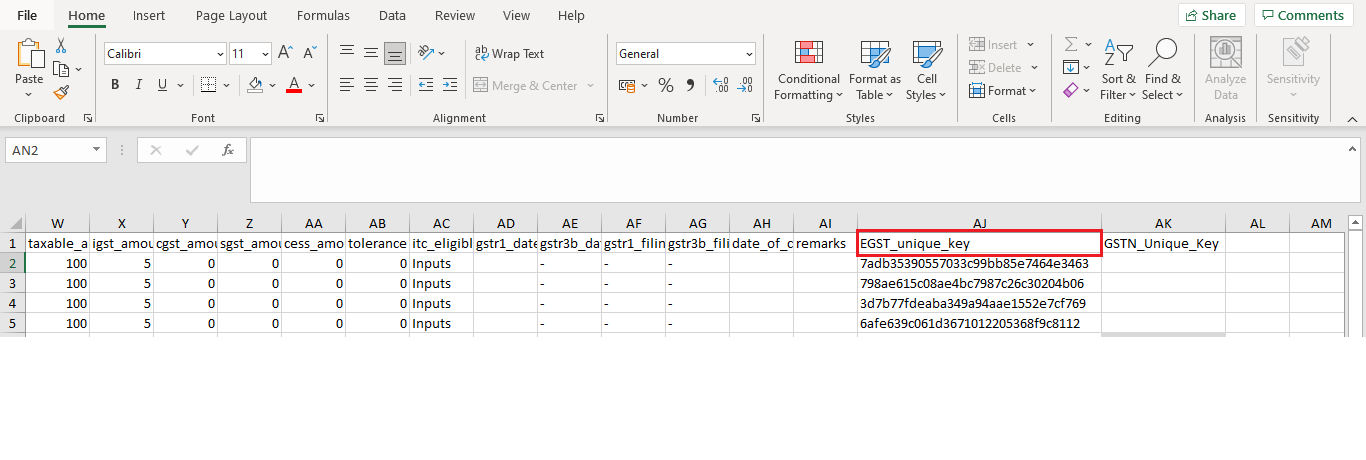
- To do the mapping/tagging of invoices, you need to identify your record & copy the Unique key from EGST sheet and paste it in GSTN sheet in “AK” column.
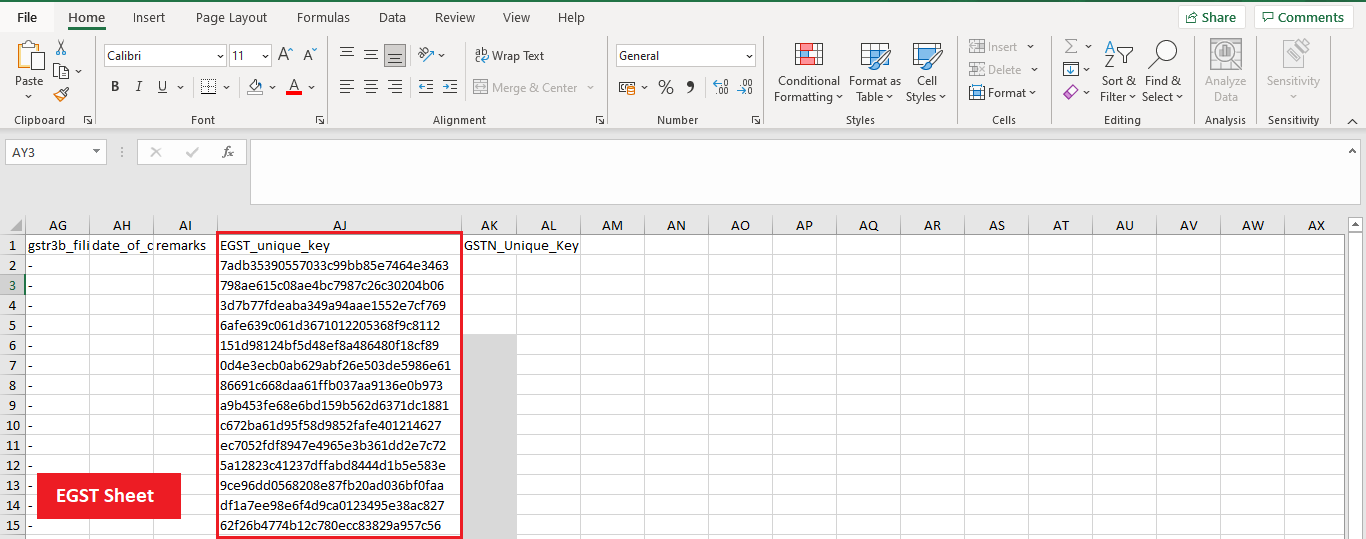
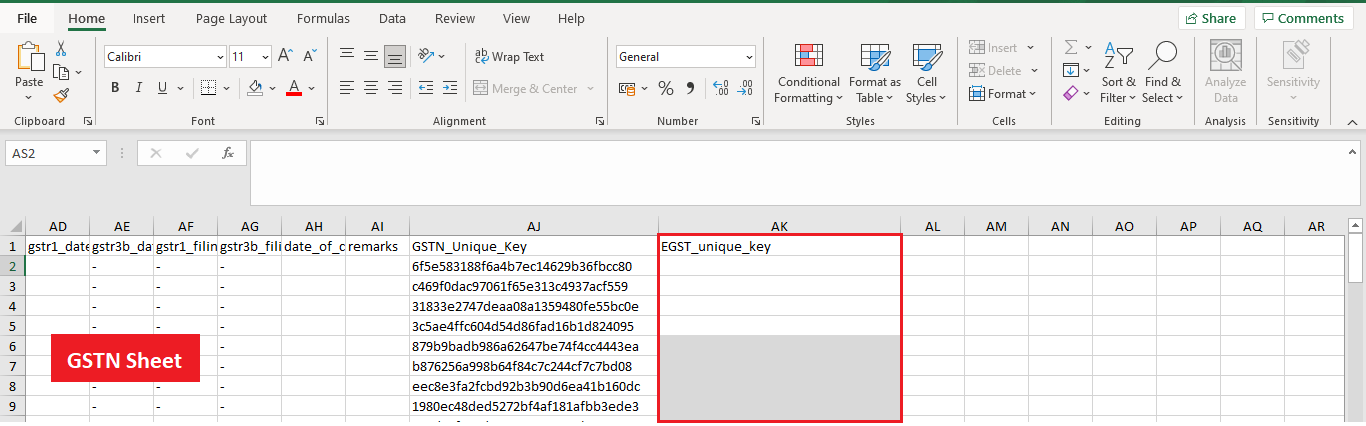
- Once the mapping is done you can upload the same file into the system.
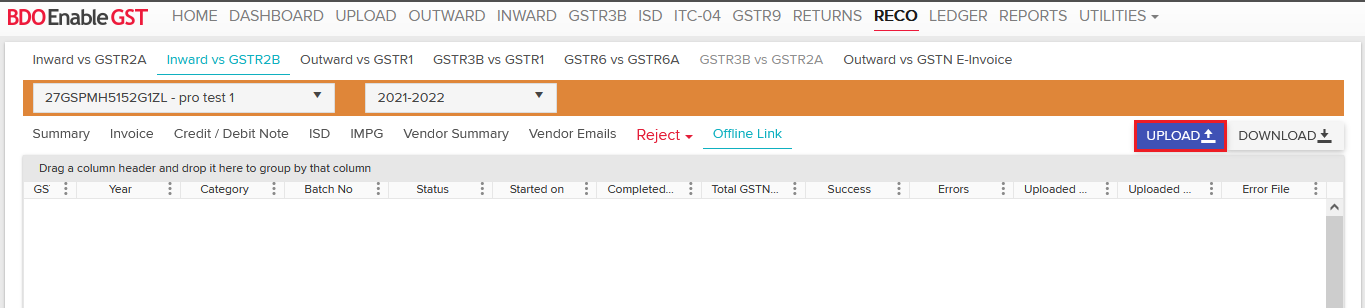
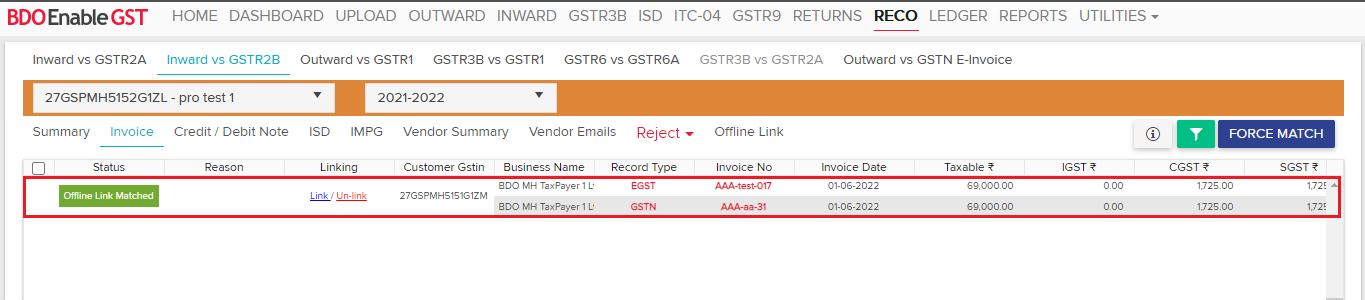
- Status will auto change to “Offline Link Matched” in the invoice grid once your data get successfully uploaded in the system.
Please Note: User can map invoices and credit debit notes with multi-link.

Thanks for reading!
Do you need any support or help?
Please write email to us on enablegst@bdo.in or call us on + 022 41642211

