- Access the https://enablegst.bdo.in URL. BDO EnableGST Home page will be displayed.
- Login to the BDO EnableGST Portal with valid Client Admin/ credentials i.e. User Id and Password.
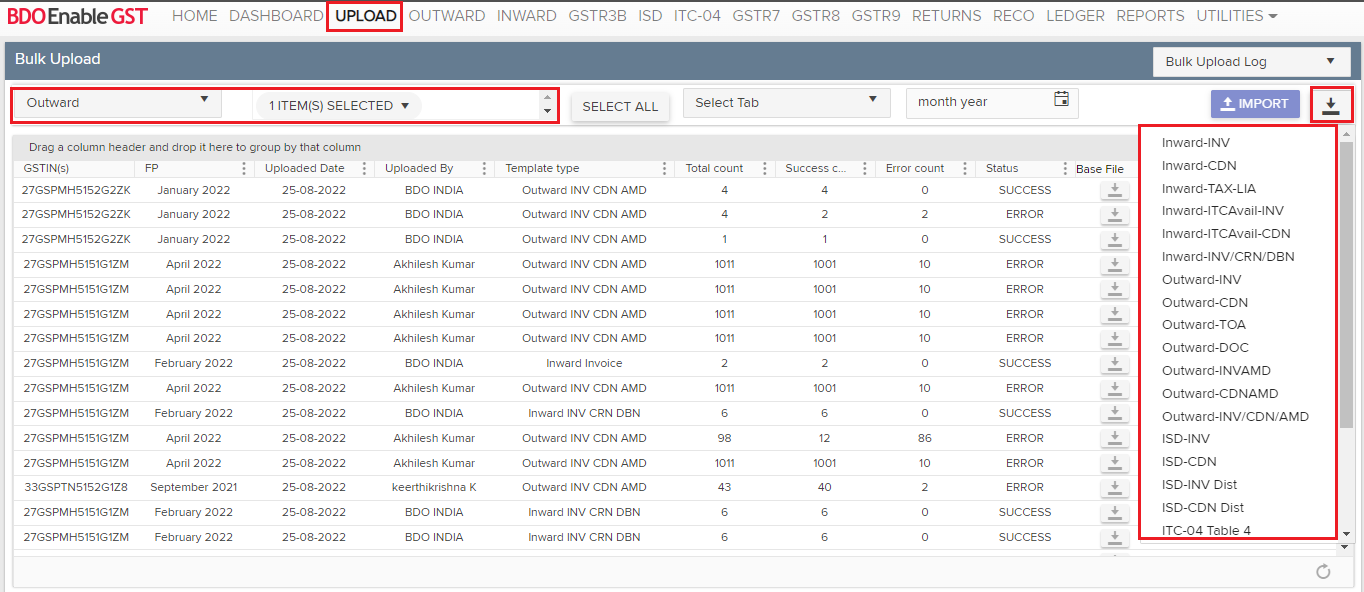
- Click on Upload >> Select Module >> Select Trade Name >> Click on download button
- Download the respective template for which user want to upload the Outward data, fill in the template with your data and then upload & save the data (if not done previously) the data.
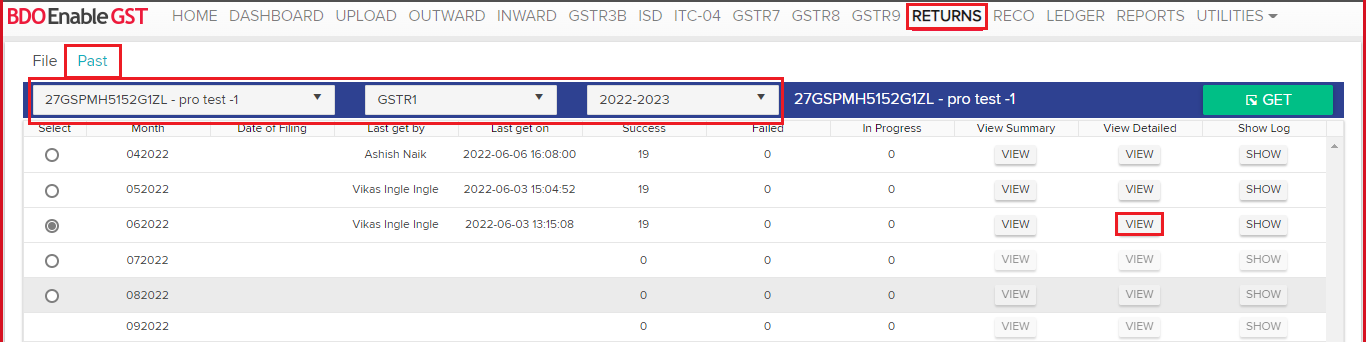
- Next process is to download GSTR-1 data from government portal for that click on Returns Tab and select the Past Tab.

- Select the Entity for which user need to perform Reconciliation or download the GSTR1 Past Data, select Financial Period & Return Type
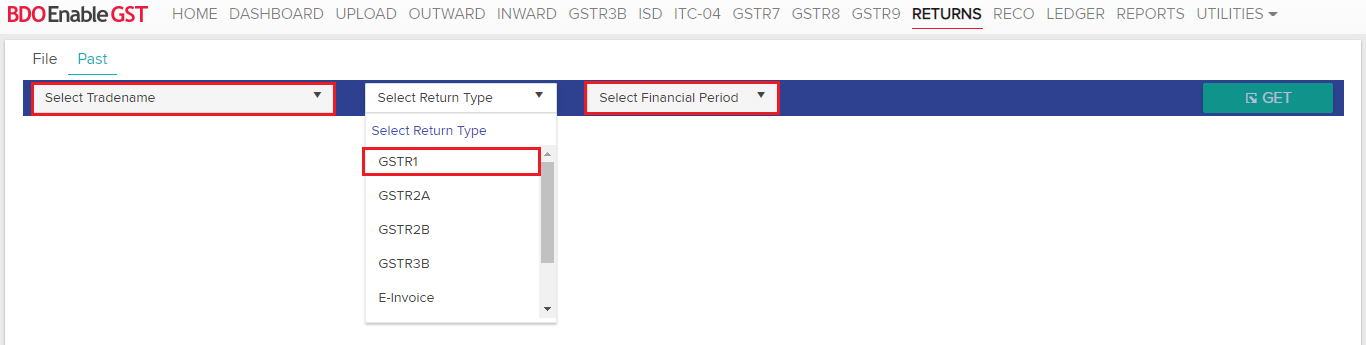
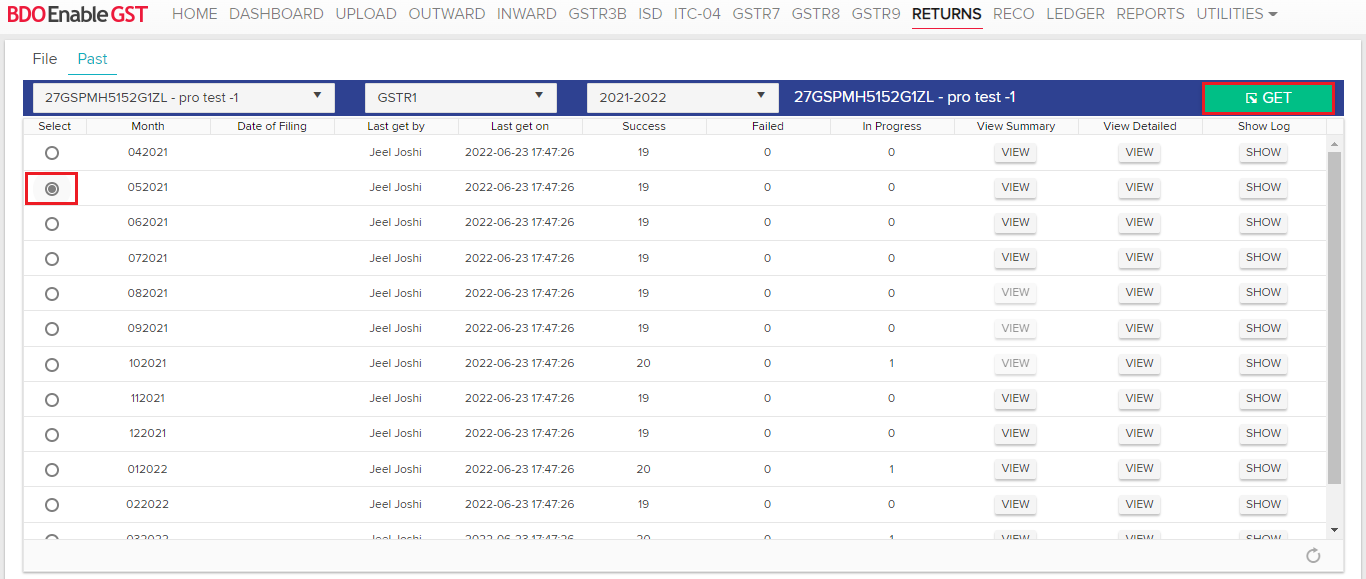
- Once all selected, user will see the list of different months and also the ‘GET’ Tab which gets activated after the month is selected, select the month & Click on >> GET Tab.
- Once user click on GET, you will see a new pop up, giving you the options of selecting the Data which you want to fetch.
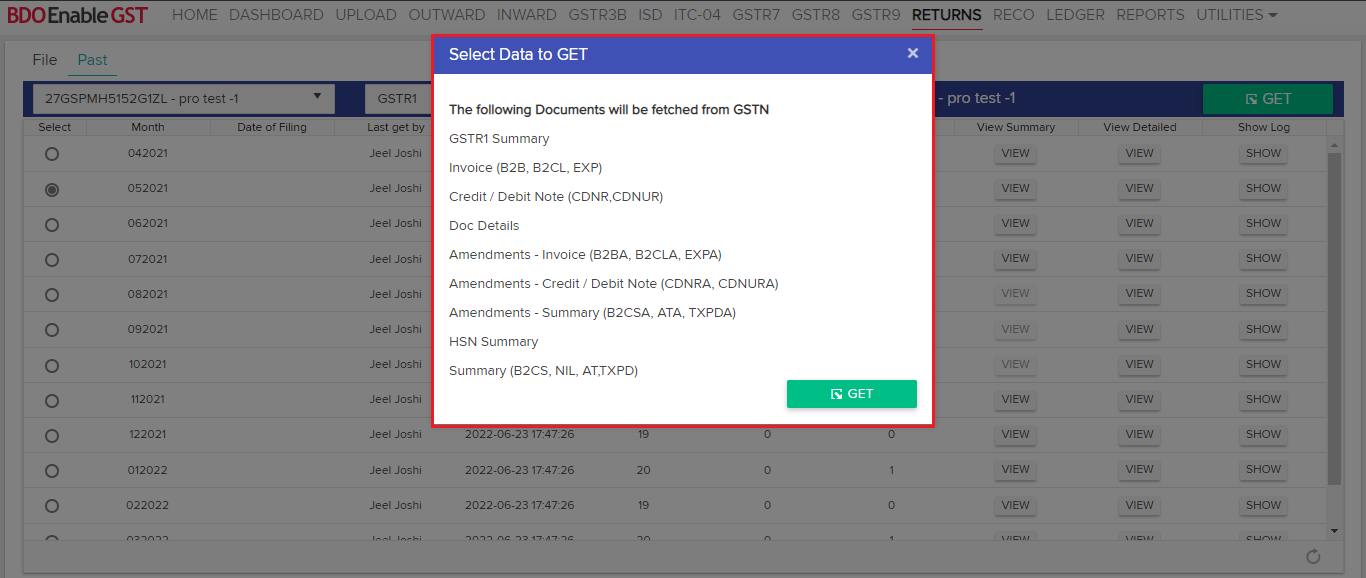
- Click on GET, a new pop up will appear asking for the OTP, once user have submitted the OTP you will be asked to wait for some time till the DATA gets fetched on the EnableGST Portal from the Govt. Portal.
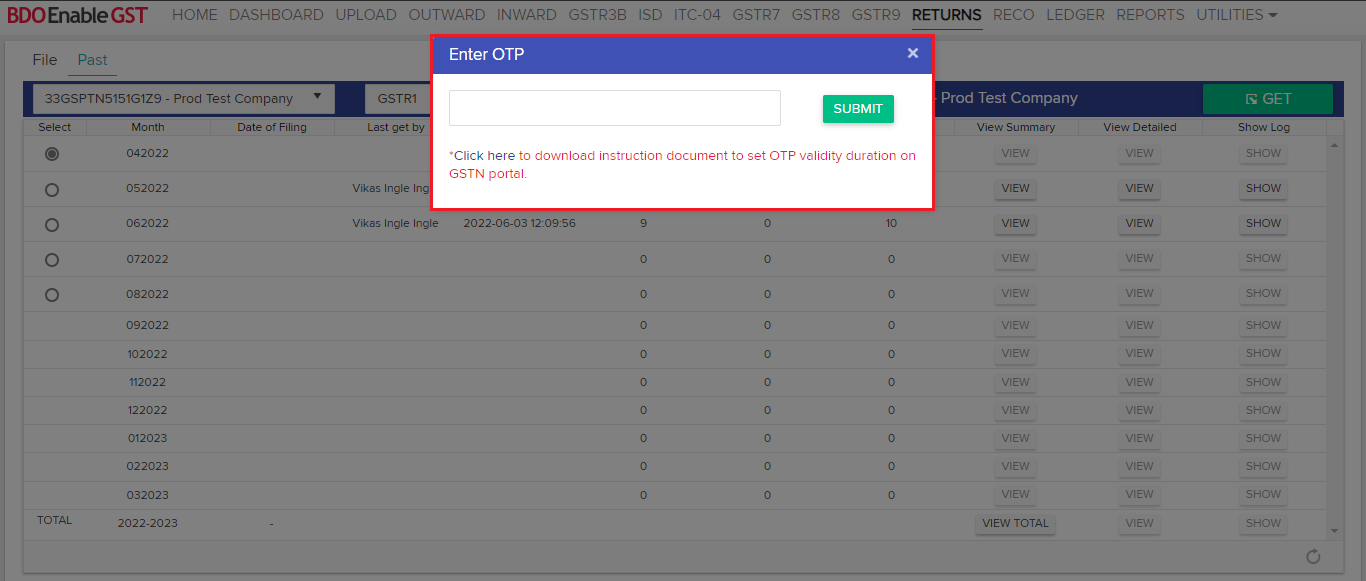
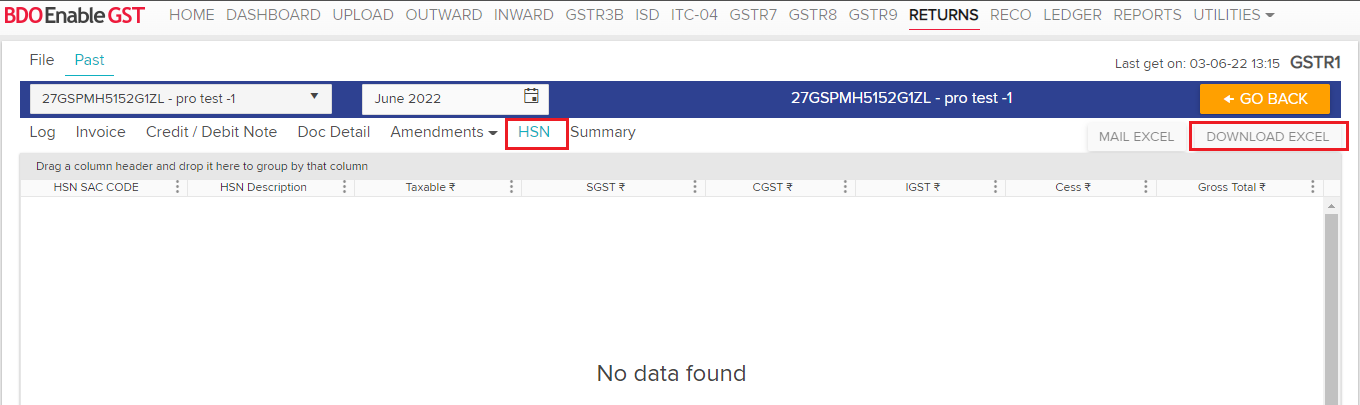
- After data has been fetched from the Govt. Portal you can view the data and download the same in excel format.
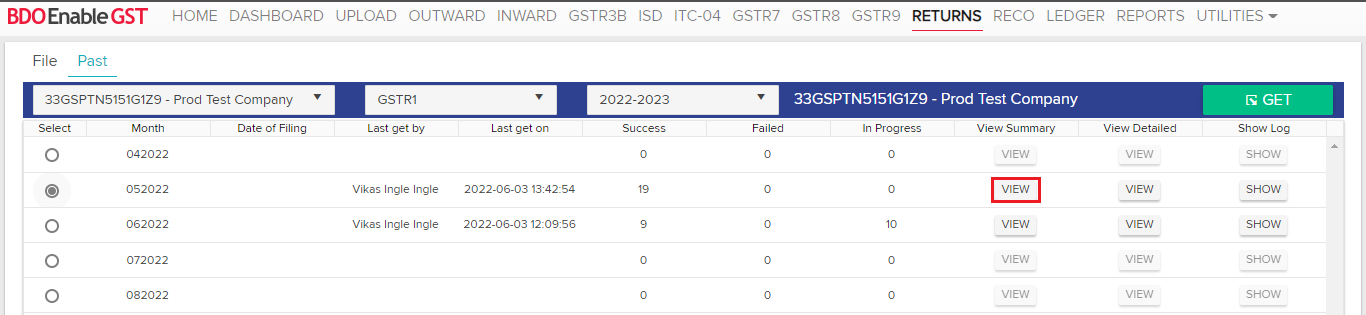
- Once user have completed with all the above-mentioned steps that is Uploading of Outward Data & Fetching of GSTR1, next is the final Reconciliation Process.
- Click on RECO Tab >> Select Outward vs GSTR1 >> Select the Tradename & Financial Period.

- Once selected the above given tabs, then select the document & then click on Perform Reco in order to proceed further with the RECO Process.
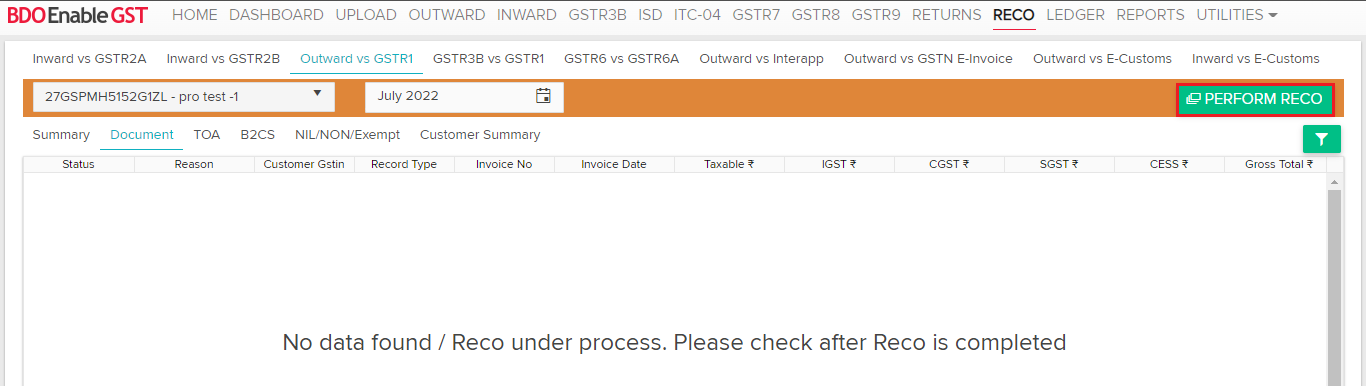
- After click on Perform Reco, a new Pop Up will come asking you to input the Reco Parameters Like Tolerance Value or percentage.
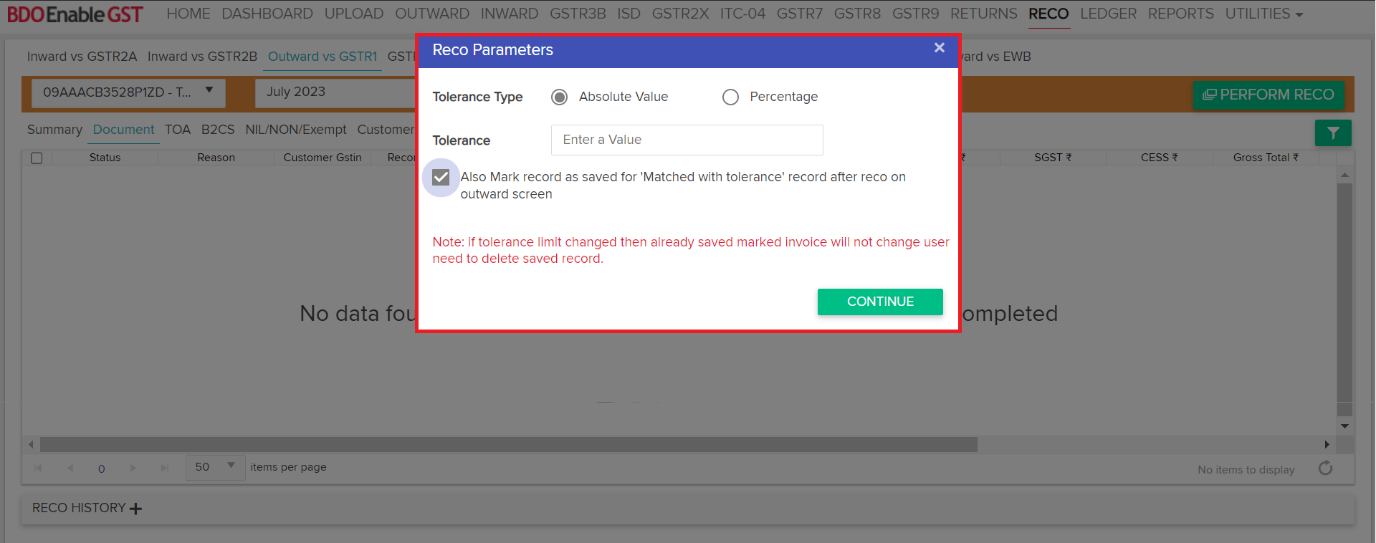
Note: We have added new functionality where user can click on the check box and records with Matched with tolerance status will marked as a saved records after Reconciliation on outward screen. - After the Reconciliation Process is completed, user will be able to view the comparison between the two data i.e., Enable GST Data (Outward) & GSTN Data (GSTR1)
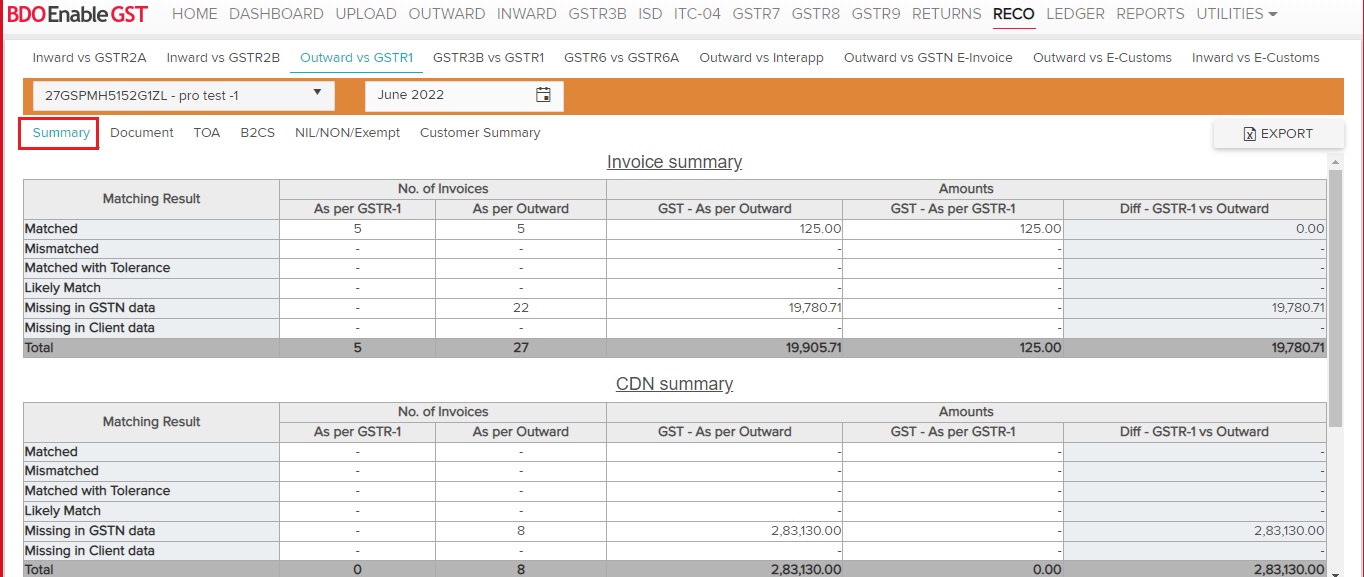
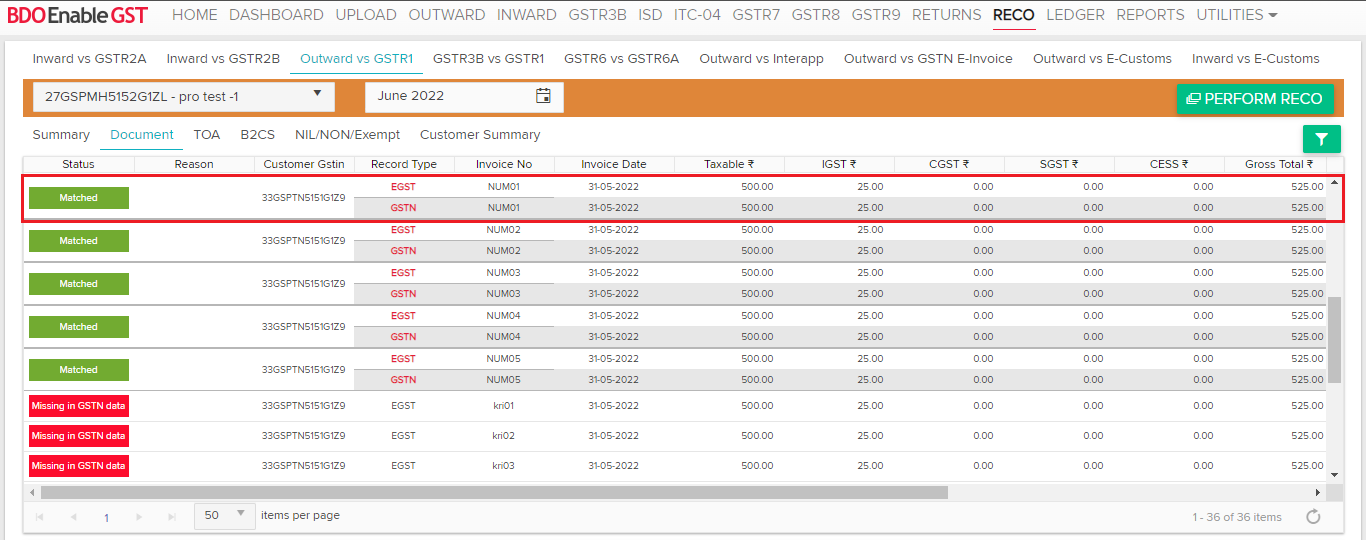
- Once reco process has been completed reco status will be show in outward tab.
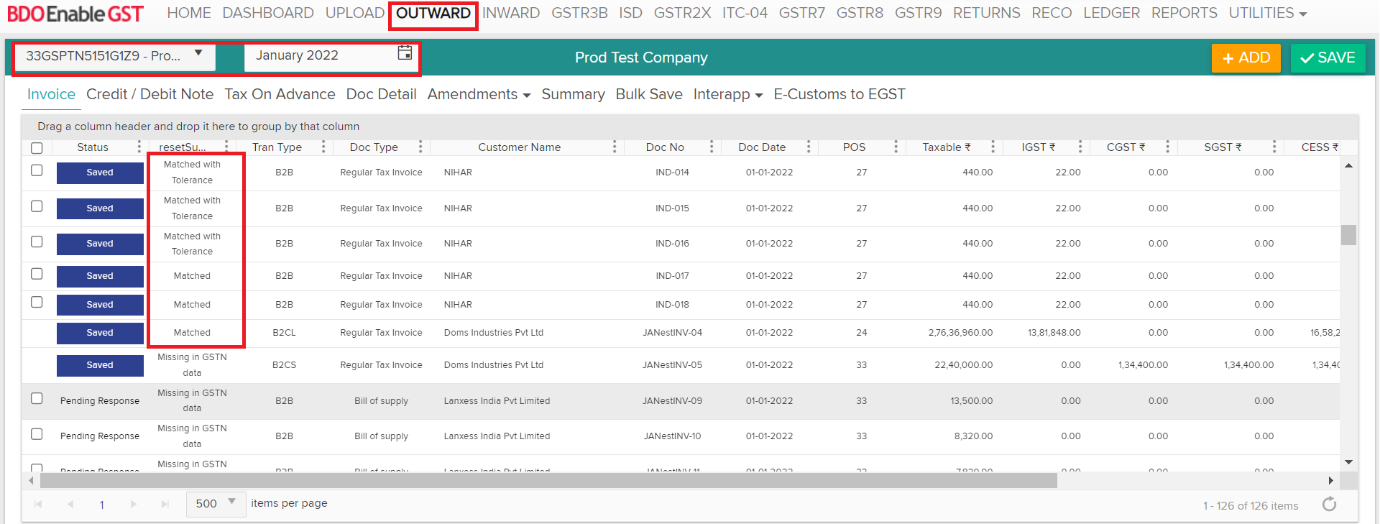
Scenario 1:- If reconciliation status is “Matched” & “Matched with Tolerance” then the status of Outward invoice will automatically marked as ‘Saved’ in EGST portal.Scenario 2: – If user wants to go ahead with Outward data for filing then select respective invoices and click on save button.
Scenario 3: – If user want to go ahead with GSTR1 data then they need not save outward record. For uniformity of data in GSTR1 and books of accounts, user can download the GSTR1 data and upload the same in EGST outward pool. Once the reconciliation is run with updated outward data & its reco status is reflected Matched then it will follow under scenario 1.
(Note: Where user goes ahead with GSTR1 data then they can download the HSN details for respective invoices and save the same to GSTN (Government portal). Also, no action will be taken on invoices once it is Approved/ Submitted/ Filed.)
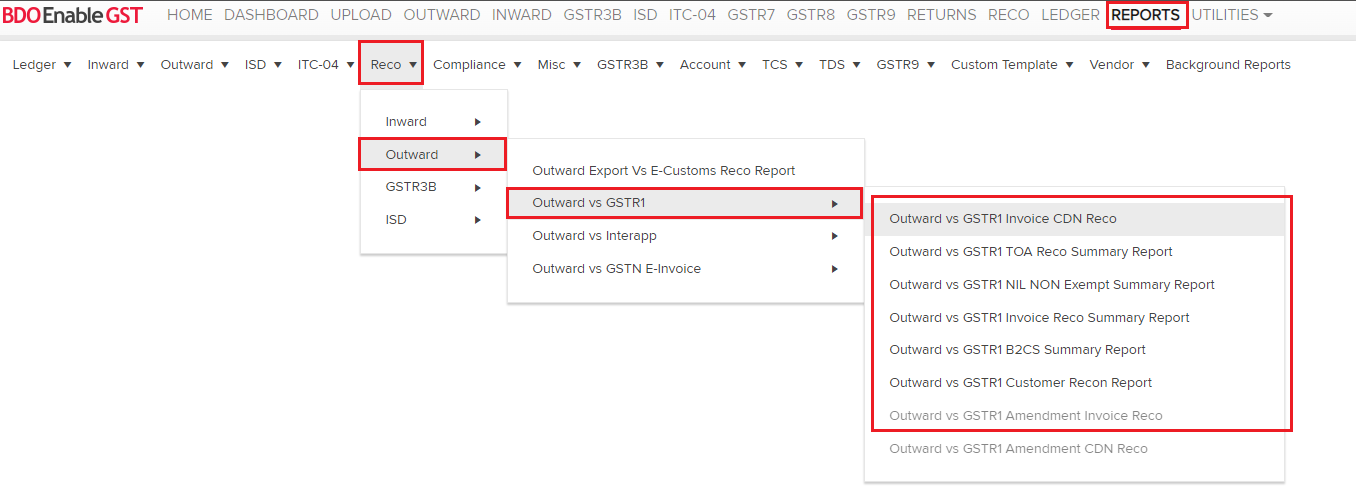
- User can also download the same above performed Reconciliation between Outward vs GSTR1 by clicking on the reports tab, then select reco Tab >> Outward >> Outward vs GSTR1 >> Select Tab for which User want to download the Reco Report.
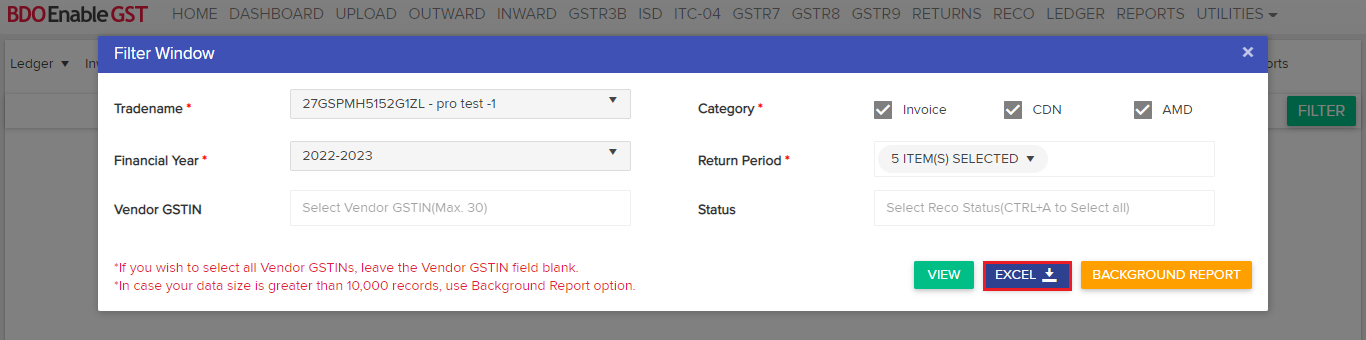
- Next User will be asked to select the Trade Name, Financial Year, Financial Period, Category, Vendor GSTN and Reco Status and then click on Excel
Note:- Mandatory fields are marked as red star mark.
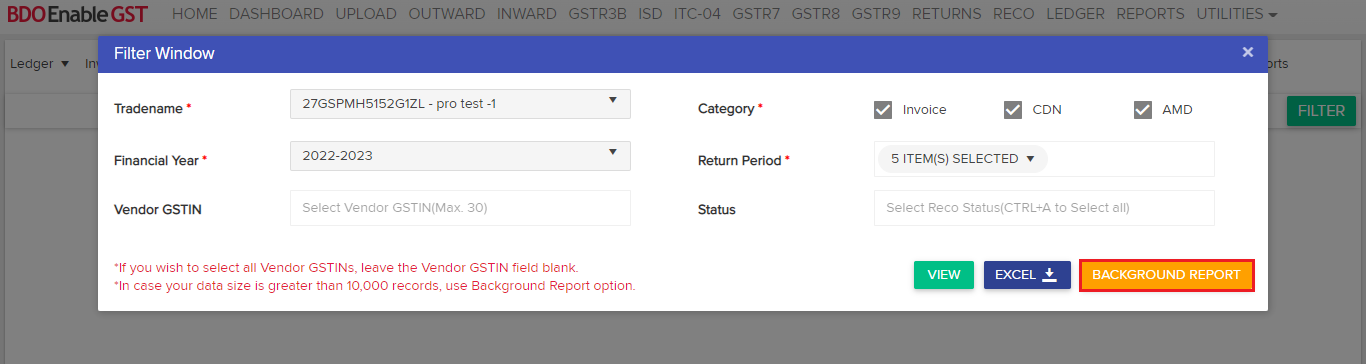
 Please Note: If the number of data lines items are above 10,000 then you can use our special feature i.e., background report.
- User can check the status and download the background report generated by selecting the Background Reports tab

- Lastly, select the purpose and the tradename for which user have generated the report and also the line for which user have generated the background report and then click on the download icon in order to save it on desktop.


Thanks for reading!
Do you need any support or help?
Please write email to us on enablegst@bdo.in or call us on +022-41642211

